The Voice & Audio Player converts text responses from your favorite AI models into natural, human-like speech. Whether you are reviewing extensive research, studying on the go, or simply reducing screen fatigue, NAToolkits lets you listen to any AI answer using studio-grade neural voices across ChatGPT, Google Gemini, and Anthropic Claude.
Step 1: Open Settings & Enable Platforms
Click the NAToolkits extension icon in your browser toolbar, or click the Settings gear icon injected into the sidebar of your AI chat interface.
To activate neural voice playback across platforms:
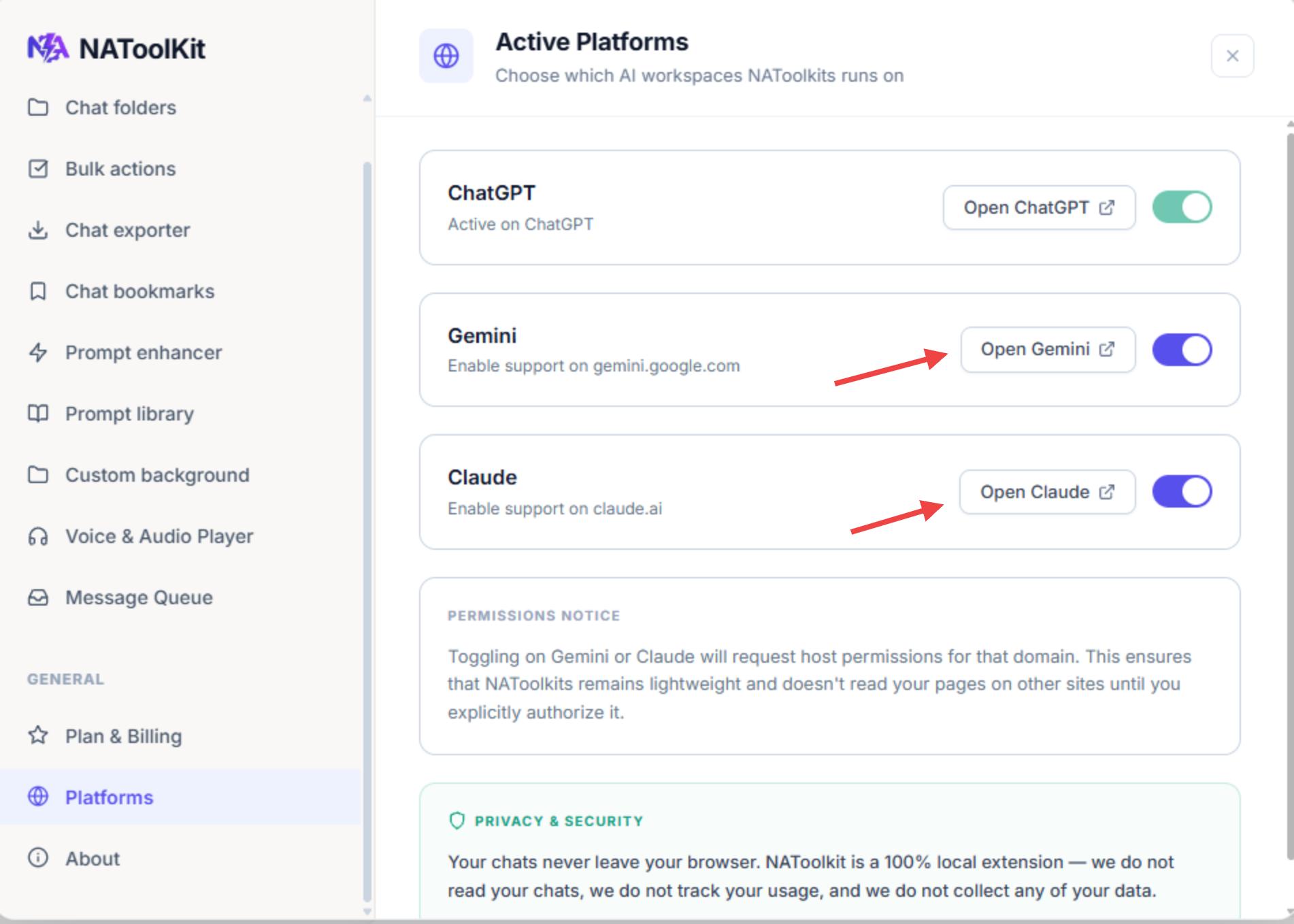
- Click the Platforms tab in the Settings sidebar.
- Turn On the toggle for your AI workspace (ChatGPT, Google Gemini, or Claude). Click Allow if your browser prompts for host permissions.
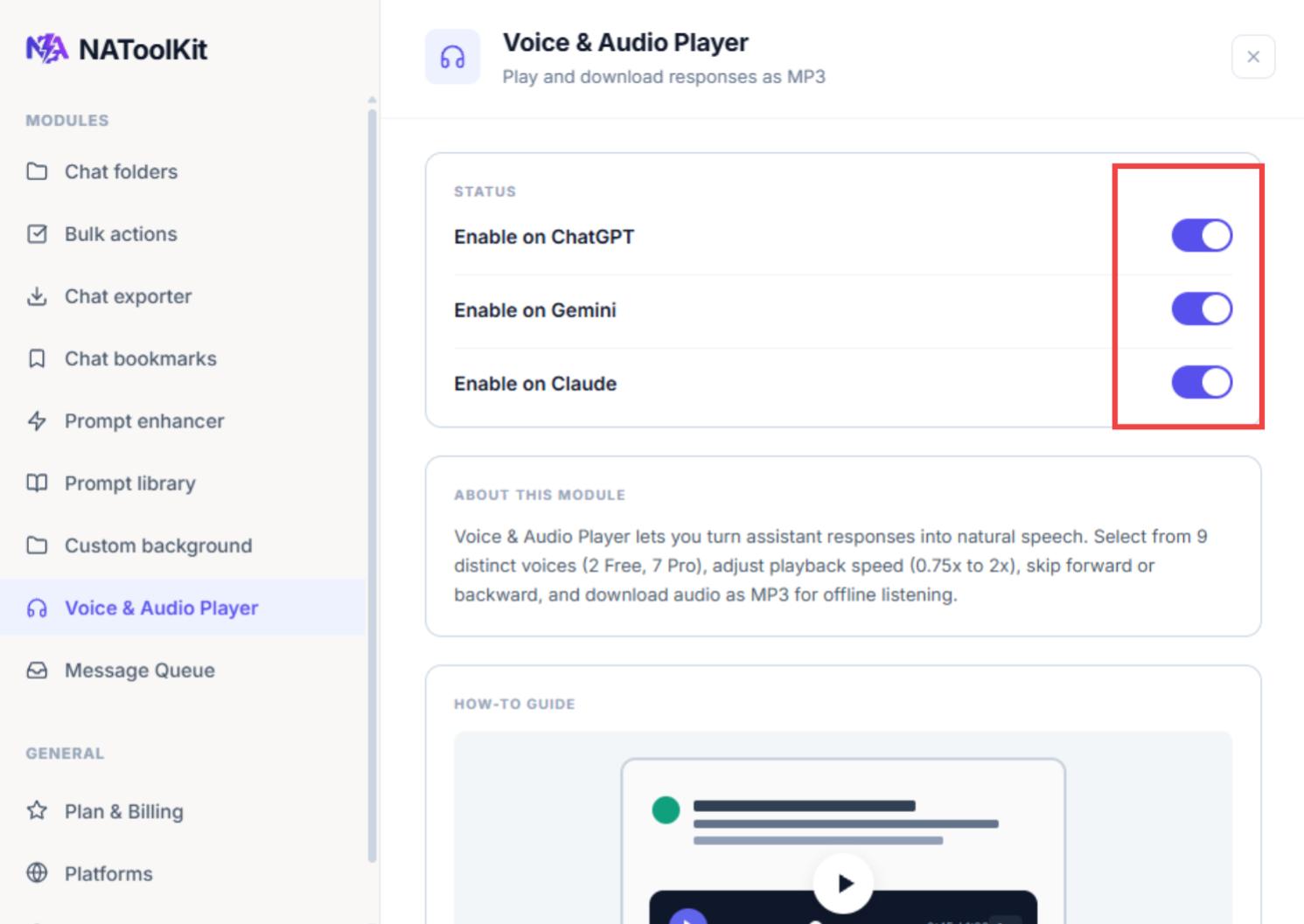
- Navigate to the Voice & Audio Player feature tab and make sure the module status toggle is switched On.
Step 2: Click the Headphone Icon on Any AI Response
Open any conversation in ChatGPT, Claude, or Google Gemini.
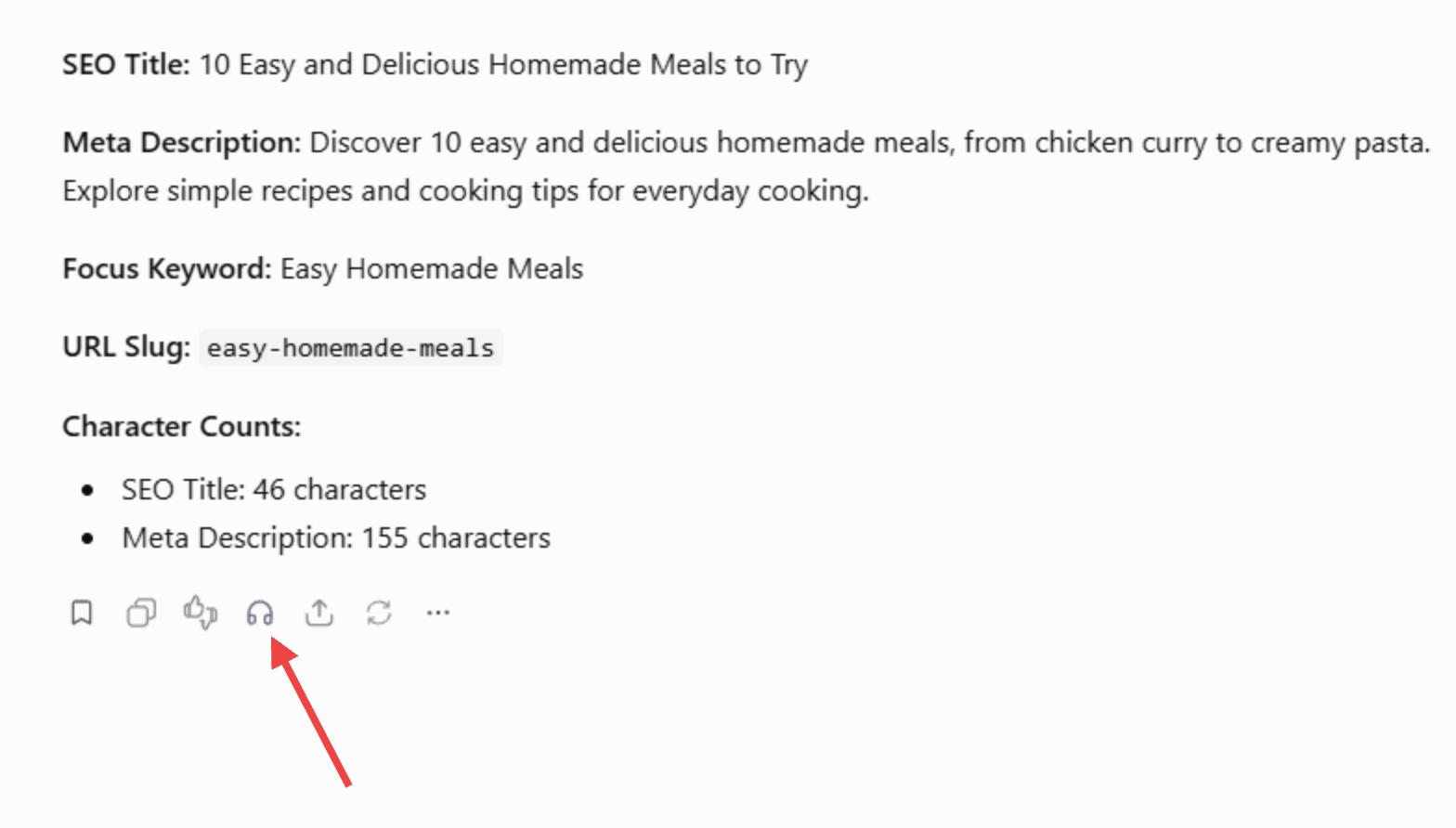
Look directly beneath any assistant message card. In the action toolbar—alongside native Copy and Feedback icons—you will find the NAToolkits Headphone (🎧) trigger button.
Click the headphone icon to initiate instant synthesis. NAToolkits parses the response text, strips non-vocal Markdown noise, and streams high-fidelity neural audio in real time.
Step 3: Listen & Control Playback with the Rich Audio Player
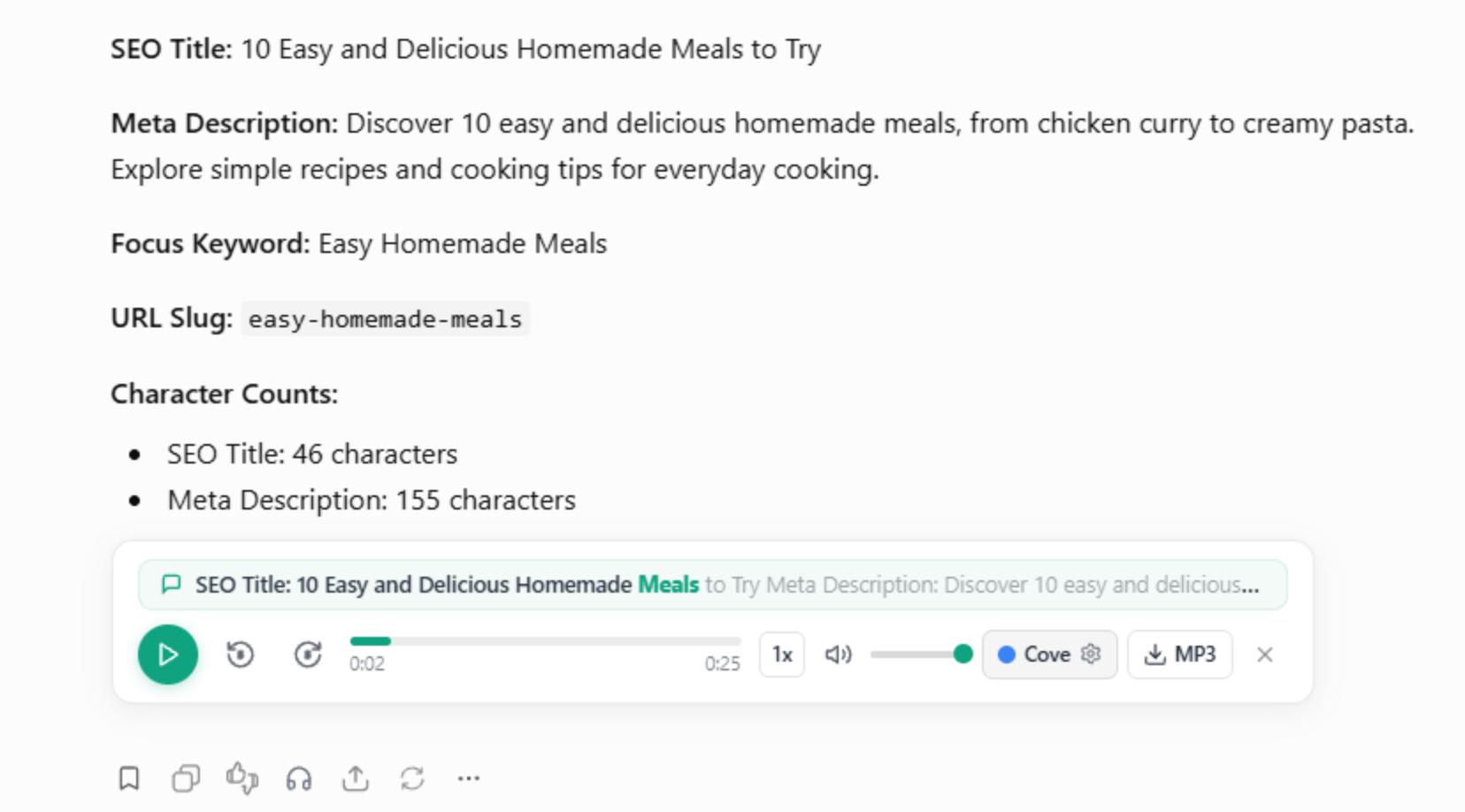
During generation, an animated neural orb with glowing rings and a live timer displays progress. Once ready, the full audio player mounts directly below the message:
- Play / Pause: Click the central Play/Pause button or press the Spacebar.
- 5-Second Skips: Quickly rewind 5 seconds (
↺ 5s) or skip forward 5 seconds (↻ 5s) to re-listen to critical details. - Waveform Scrubber: Click or drag anywhere along the progress track to jump to specific points in the response, complete with hover time preview.
- Speed Control: Click the speed badge to cycle between
0.75x,1x,1.25x,1.5x,1.75x, and2xplayback speeds without pitch distortion. - Volume & Mute: Hover over the speaker icon to adjust volume smoothly or click to mute/unmute.
- Live In-Player Subtitles: Follow along with synchronized, word-by-word highlighted karaoke subtitles displayed directly inside the player bar.
Step 4: Keep Listening While Scrolling (Sticky Floating Mini-Player)
If you scroll up to inspect previous turns or scroll down to draft your next prompt, the audio player never interrupts your workflow.
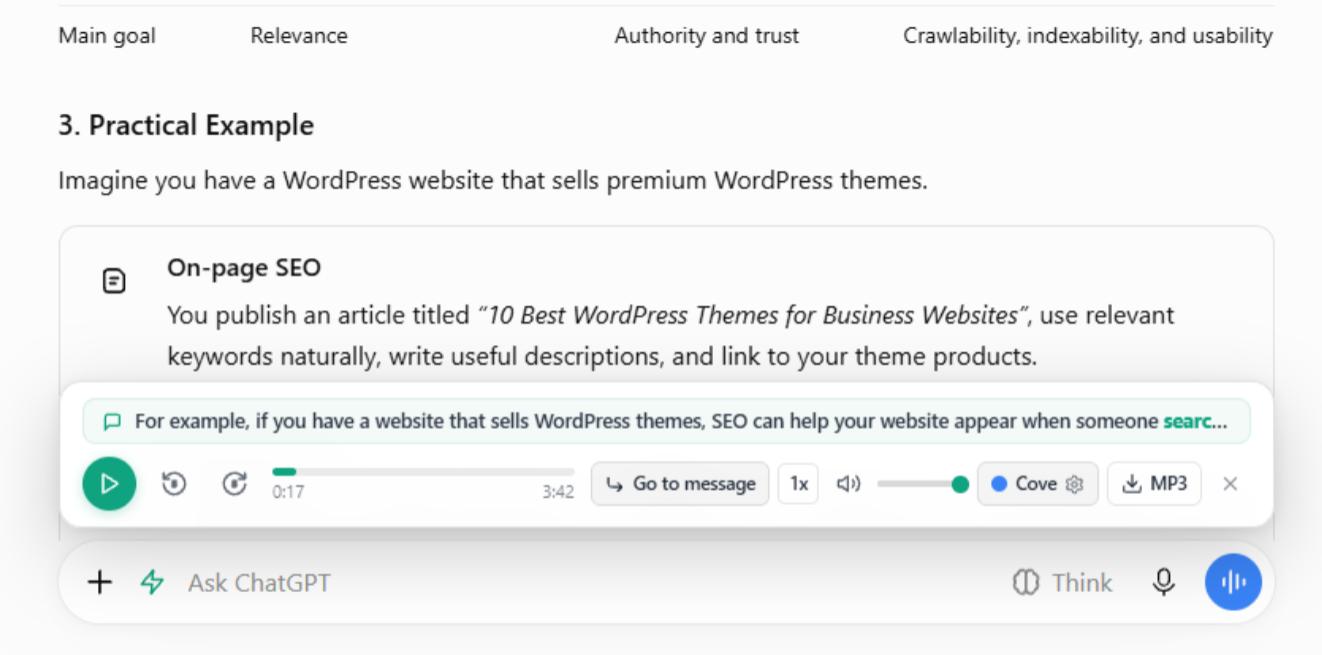
Using an intelligent intersection observer, the player automatically detaches and docks smoothly above your chat input box as a Sticky Floating Mini-Player:
- Keep full access to play/pause, skips, and timeline scrubbing while continuing to read or type.
- Click the Go to message button on the floating bar to smoothly scroll the viewport right back to the original response message.
- When you scroll back to the original message card, the player re-docks into its inline position automatically.
Step 5: Customize Neural Voices & Audition Samples
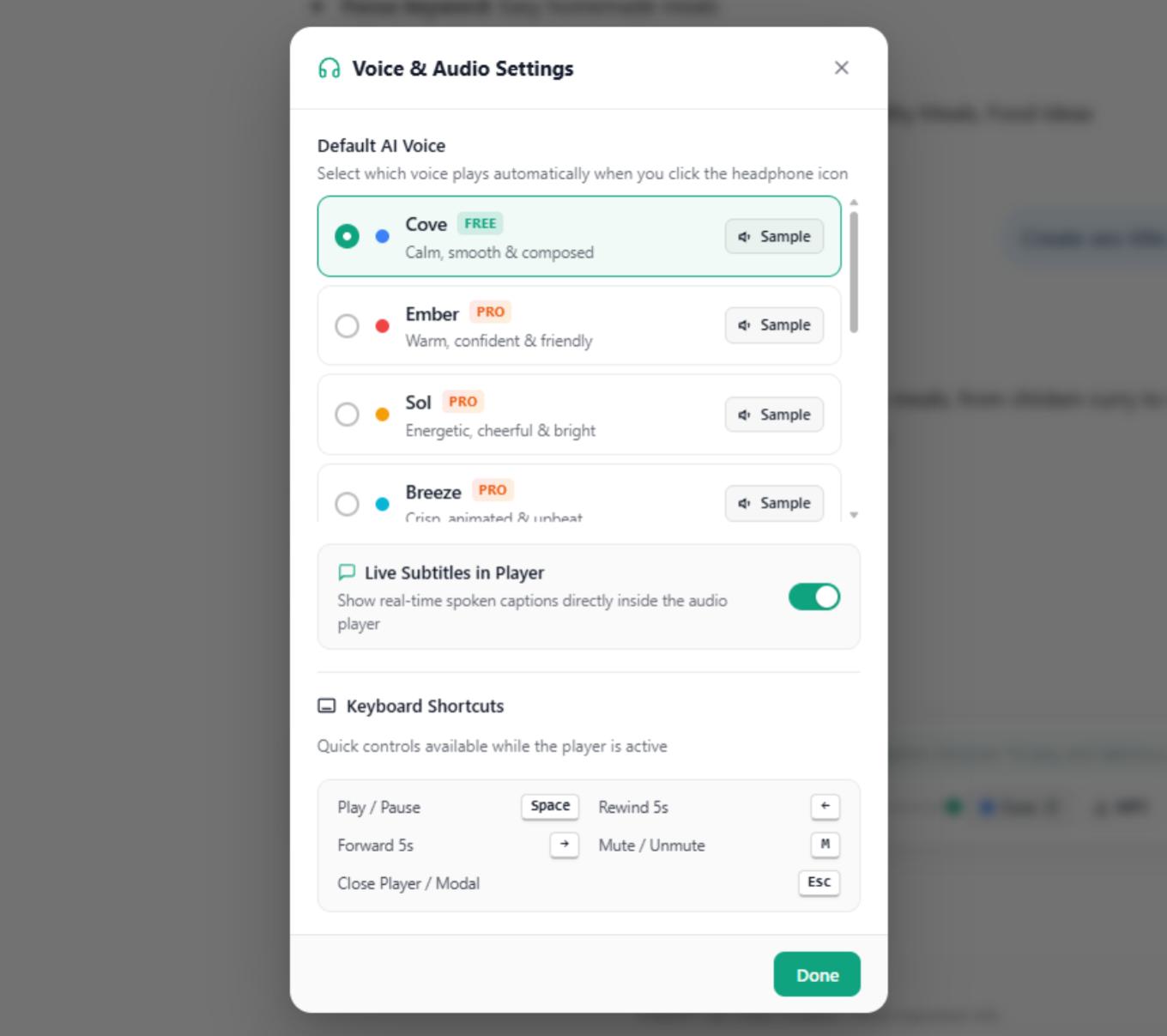
Click the Voice Badge or Settings button on the audio player to open the Voice & Audio Settings modal:
- ChatGPT Neural Voices (9 Voices):
- Cove: Calm, smooth & composed (Free default).
- Ember: Warm, confident & friendly.
- Sol: Energetic, cheerful & bright.
- Breeze: Crisp, animated & upbeat.
- Maple: Gentle, natural & empathetic.
- Spruce: Reflective, deep & articulate.
- Vale: Bright, inquisitive & expressive.
- Juniper: Open, clear & conversational.
- Arbor: Deep, rich & narrative.
- Google Gemini Neural Accents (4 Voices):
- Gemini US: Google Neural American English (Free default).
- Gemini UK: Google Neural British English accent.
- Gemini AU: Google Neural Australian accent.
- Gemini India: Google Neural Indian English accent.
- Anthropic Claude Neural Voices (5 Voices):
- Buttery: Warm, smooth & natural (Free default).
- Airy: Light, clear & breezy.
- Mellow: Calm, gentle & composed.
- Glassy: Crisp, bright & articulate.
- Rounded: Deep, resonant & rich.
- Sample Auditions: Click the Sample button on any voice card to hear a 4-second preview before picking your favorite.
- Subtitle Toggle: Turn live subtitles in the player on or off according to your preference.
Step 6: Download Audio for Offline Listening (MP3, OGG, WAV)
Want to take your AI responses with you on your morning commute, during workouts, or archive them as voice notes?
Click the Download button in the player bar. NAToolkits instantly packages the synthesized stream into a clean audio file formatted natively for the active platform:
- ChatGPT: Downloads high-bitrate
.mp3audio (AAC stream). - Google Gemini: Downloads clean
.oggaudio (Opus stream). - Anthropic Claude: Downloads studio-quality 16kHz mono
.wavaudio (PCM stream with RIFF header).
Pro-Tips & Keyboard Shortcuts
- Keyboard Navigation: Control playback effortlessly without reaching for your mouse:
- Spacebar: Play or pause active audio.
- ← (Left Arrow): Rewind 5 seconds.
- → (Right Arrow): Fast forward 5 seconds.
- M: Mute or unmute volume.
- Esc: Close player or settings modal.
- Single-Audio Policy: NAToolkits enforces a strict single-audio rule. Clicking audio on a new message automatically stops and tears down the previous player to eliminate overlapping sounds.
- Zero-RAM LRU Cache: To keep your browser tab fast and lightweight, NAToolkits caches up to 5 audio clips per tab and deterministically revokes unused object URLs when memory limits are reached.
- Free vs. Pro Quota: Free tier users enjoy 1 voice per platform (Cove on ChatGPT, Gemini US on Gemini, Buttery on Claude) and 4 audio plays/downloads daily (resets every midnight). Pro plan users get unlimited plays, downloads, and all 18 Neural voices.
Frequently Asked Questions
Q: Does Voice & Audio Player work on ChatGPT, Claude, and Gemini?
A: Yes! NAToolkits natively interfaces with the audio synthesis protocols of all three platforms. Just ensure the platform is turned on under Settings ➜ Platforms.
Q: Does NAToolkits send my chat messages to third-party TTS APIs?
A: No. NAToolkits leverages the official, native neural backends already provided by OpenAI, Google, and Anthropic. All caching and audio assembly happen entirely client-side in your browser memory.
Q: What audio formats are downloaded?
A: Downloads automatically adapt to the platform: MP3 for ChatGPT, OGG Opus for Google Gemini, and uncompressed RIFF WAV for Anthropic Claude.
Q: What happens when my 4 free daily plays are used?
A: The quota card inside the Voice Settings modal shows your usage. The quota automatically resets to 4 plays every midnight. Upgrading to the Pro tier removes daily limits completely.
Q: Can I change the voice after generating an audio response?
A: Yes. Open the Voice Settings modal, click on a different unlocked voice, and click Done. The player will immediately re-synthesize and play the response using the newly selected voice.