
Bulk Actions let you select multiple conversations at once and archive, move, or delete them in a single operation.
Use Bulk Actions for routine sidebar cleanup, moving batches of conversations to a folder, or archiving chats from a finished project.
Step 1: Open Settings
In the settings dashboard, navigate to the Bulk actions tab and toggle the status to On.
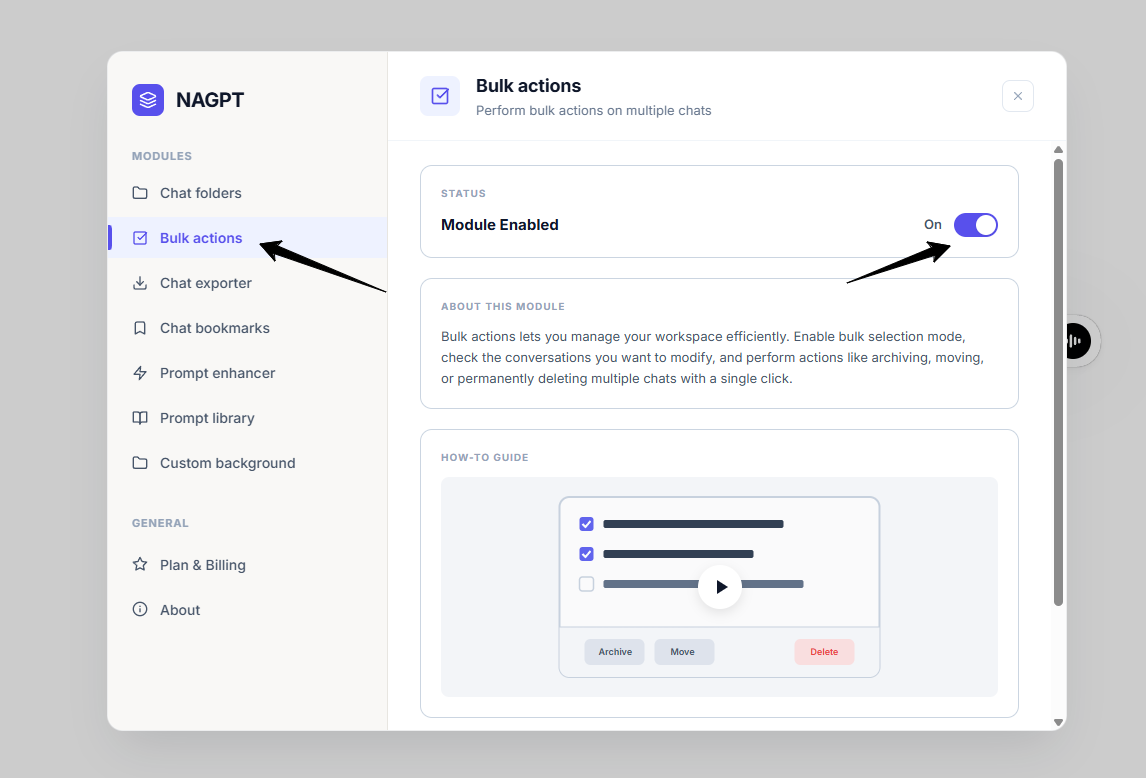
settings dashboard
Step 2: Activate Selection Mode
- Look at your ChatGPT sidebar history. Below the Folders panel, you will see a Bulk Actions section.
- Slide the toggle switch next to Bulk Actions to On.
- Checkboxes will appear on the left side of every conversation in your sidebar, and a floating toolbar will appear at the bottom.
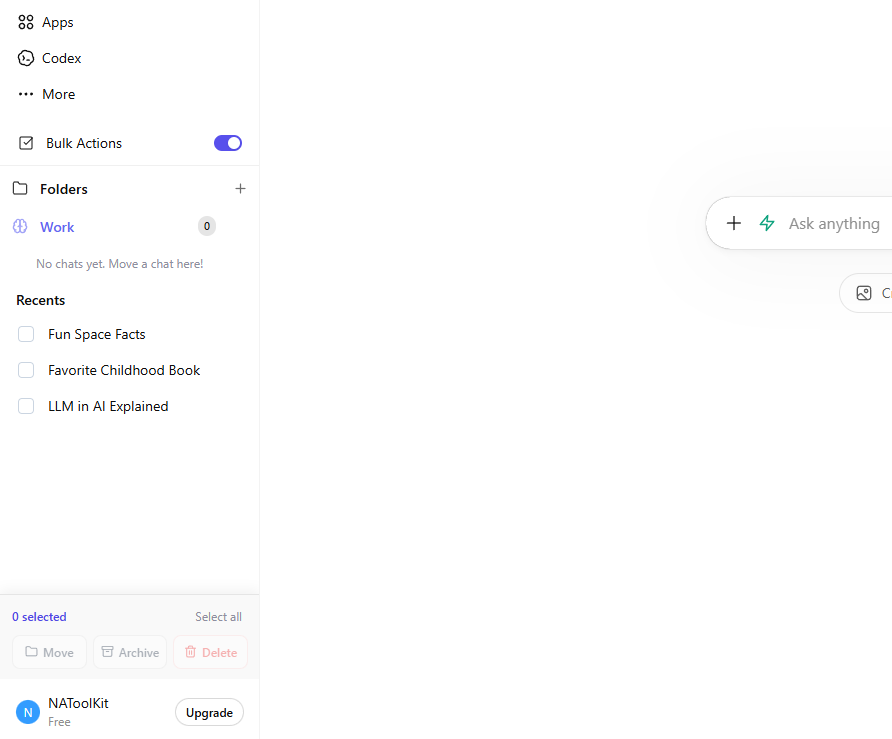
Slide the toggle on.
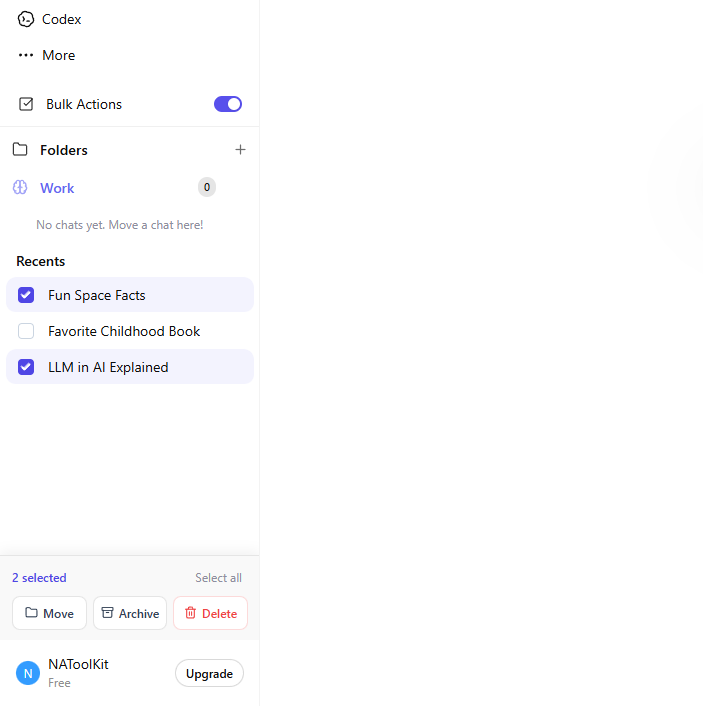
Bulk Actions toggle, sidebar checkboxes, and bottom toolbar.
Step 3: Perform Bulk Actions
Select individual chats by checking their boxes, or click Select all in the bottom toolbar to check all loaded chats.
- Move: Opens the move modal. Check the folders you want to group these chats into and click Save changes.
- Archive: Automatically archives all selected chats from your active history.
- Delete: Opens a confirmation popup. Click Delete to permanently erase the selected chats.
Turn the Bulk Actions toggle switch Off to hide the checkboxes and return to normal sidebar operations.