
Chat Bookmarks let you pin specific messages within a conversation so you can jump back to them instantly without scrolling.
Use bookmarks for long research threads or technical conversations where you need to save a key answer, code snippet, or instruction.
Step 1: Open Settings
In the settings dashboard, navigate to the Chat bookmarks tab and toggle the status to On.
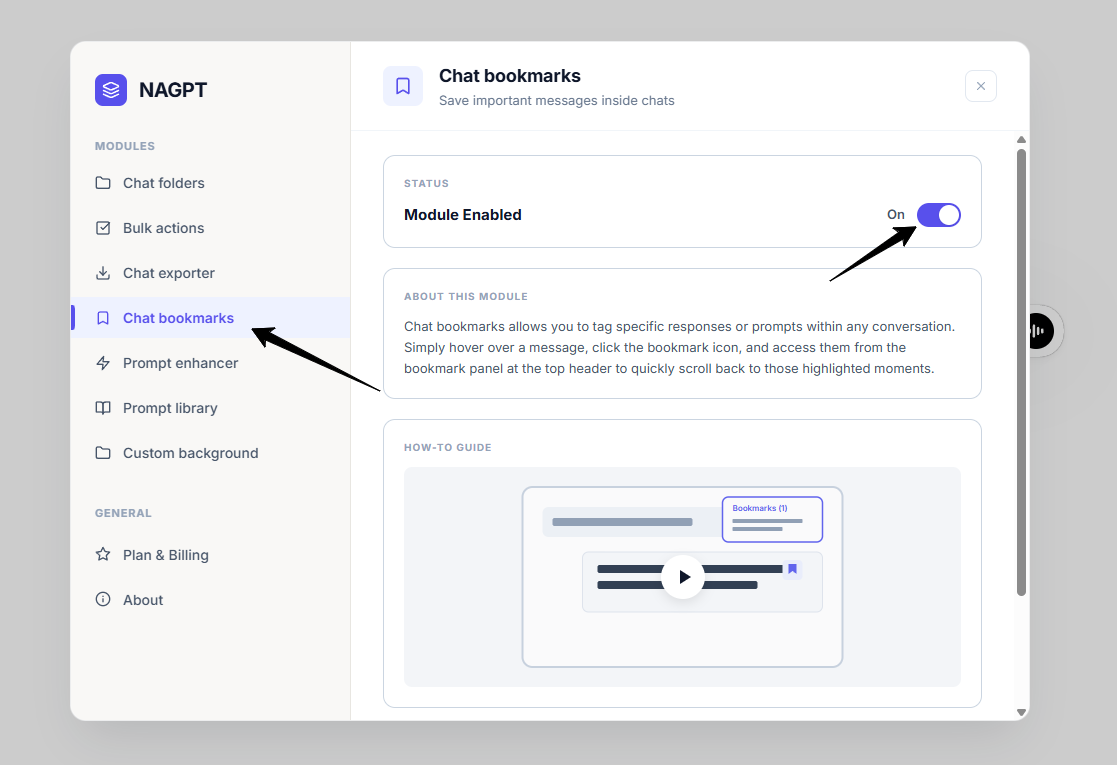
settings dashboard.
Step 2: Bookmark a Message
- Open any chat.
- Hover over any message bubble, either your question or the AI's reply.
- Click the Bookmark ribbon icon that appears next to the copy and like buttons.
- The icon will turn solid, indicating the message is bookmarked.
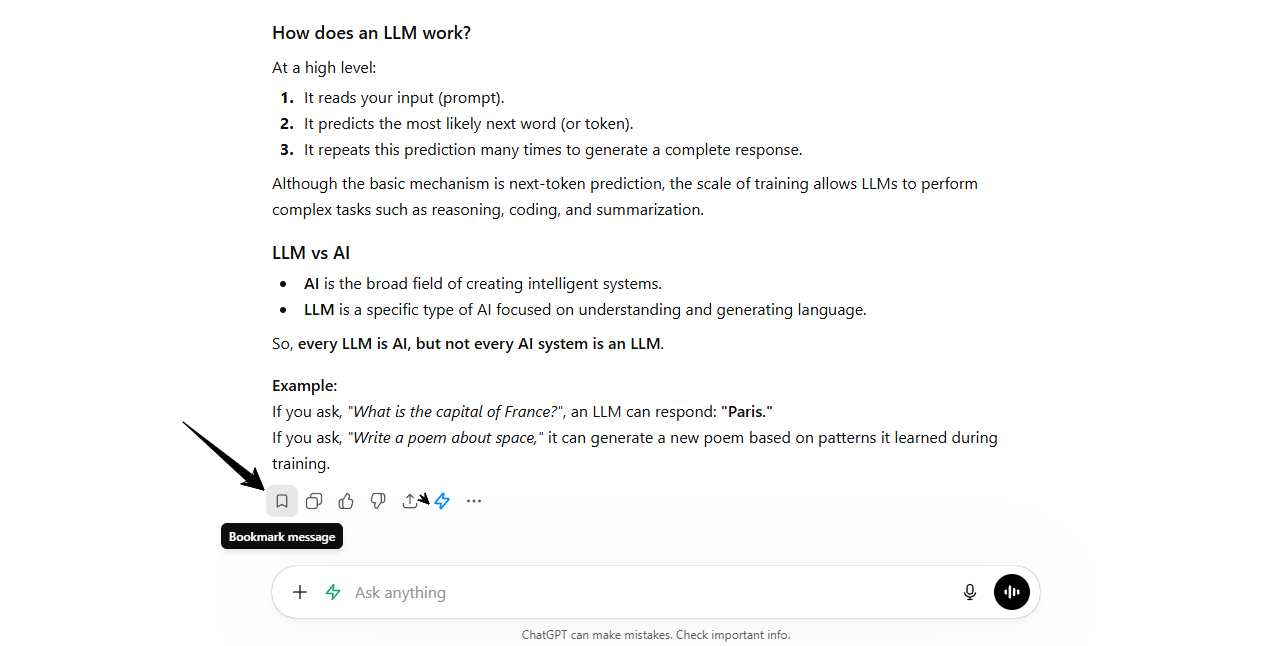
Bookmark ribbon icon beside a message.
Step 3: View & Navigate Saved Bookmarks
- In the ChatGPT header, click the Bookmarks button. It shows a badge with the count of active bookmarks in the thread.
- The Chat Bookmarks modal will open, listing text snippets of all saved messages in this chat.
- Click any bookmark snippet in the list. The modal will close, the page will scroll to that message, and the message will temporarily flash green.
- To remove a bookmark, click the Trash bin icon next to the snippet in the modal, or hover over the message and click the bookmark button again.
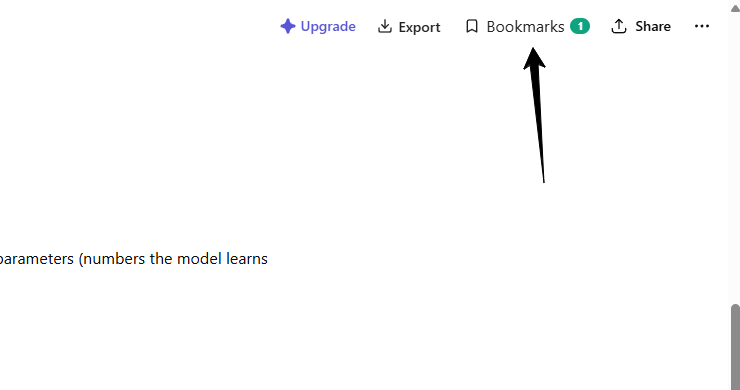
Bookmarks header button.
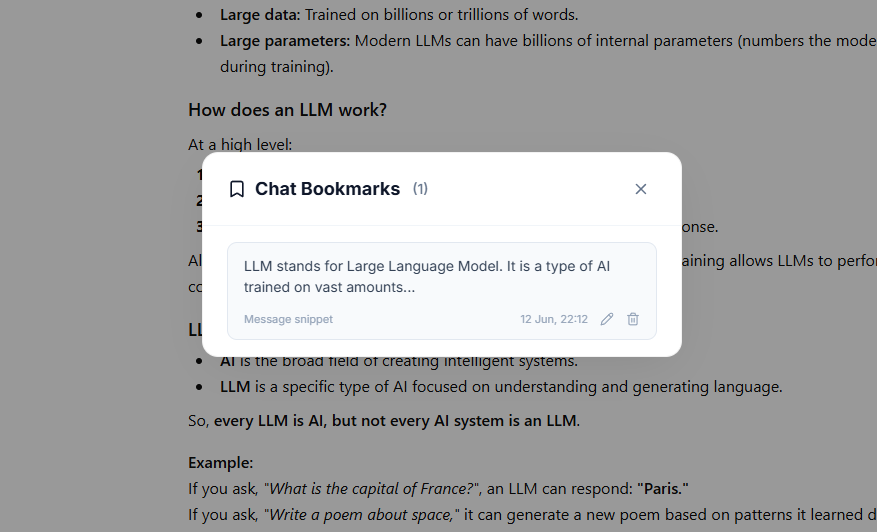
Chat Bookmarks modal.
Bookmark Note
You can also add a note to a bookmark by clicking the Pencil icon in the Chat Bookmarks modal. Use notes to quickly capture why a bookmark is important, so it's easier to find later when you have multiple bookmarks in the same conversation.
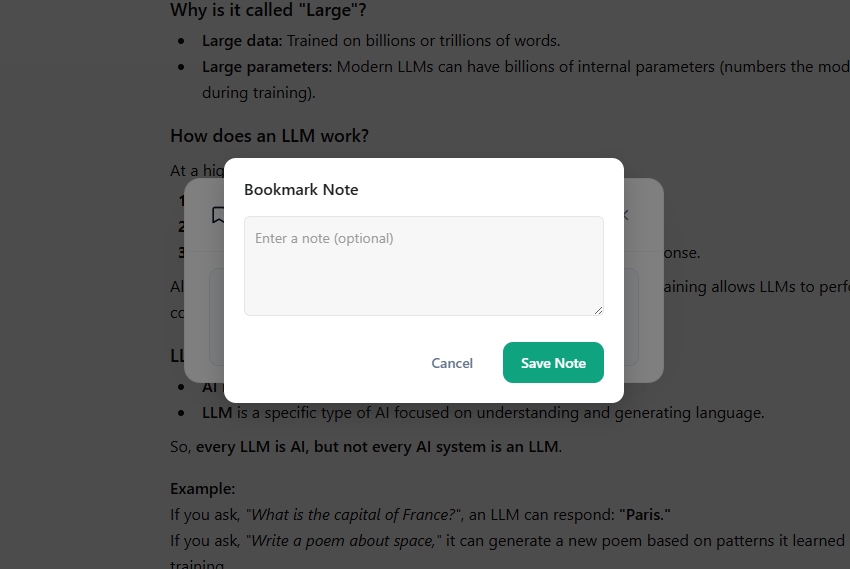
Bookmark note option in the Chat Bookmarks modal.