
Chat Folders organize your ChatGPT sidebar by letting you group conversations into named, color-coded folders, similar to folders in a file manager.
Step 1: Open Settings
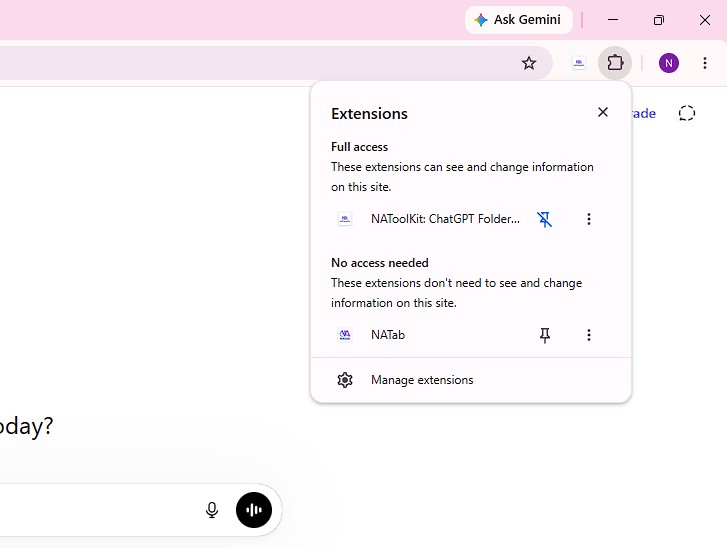
Click the NAToolkits extension icon at the top of your browser, or click the Settings gear icon injected in the ChatGPT sidebar.
Step 2: Enable the Module
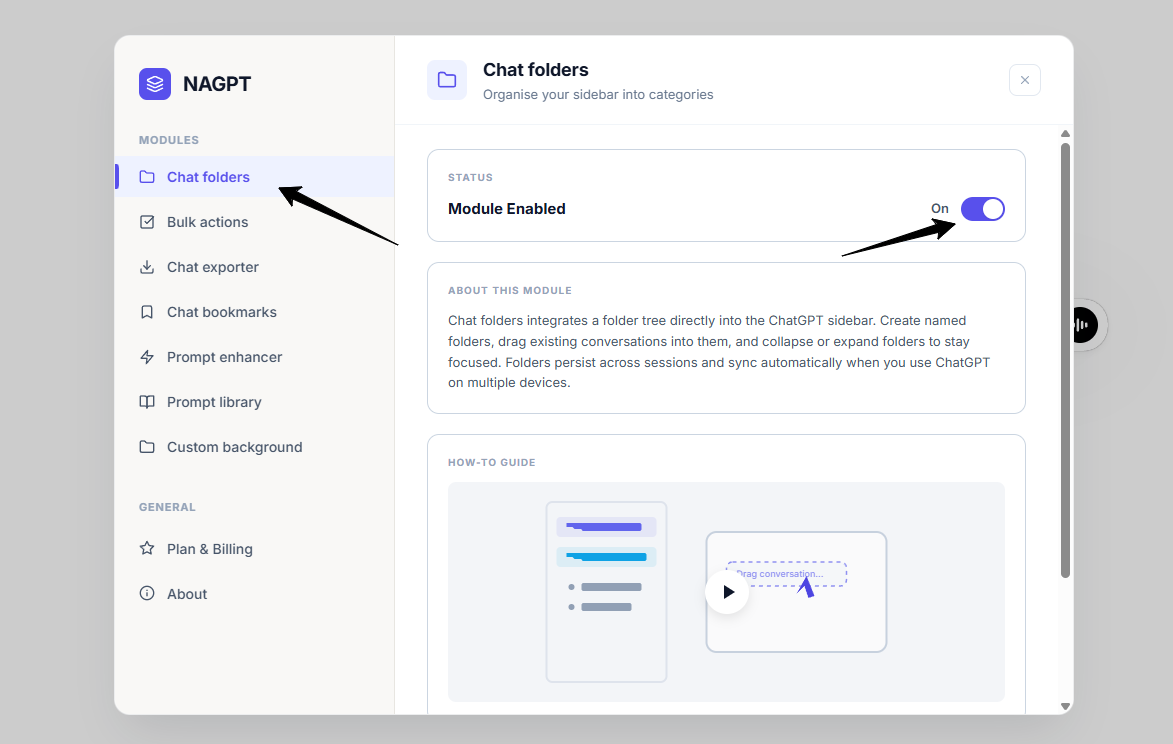
In the settings modal, navigate to the Chat folders tab and make sure the status toggle is turned On.
Step 3: Open the Create Folder Modal
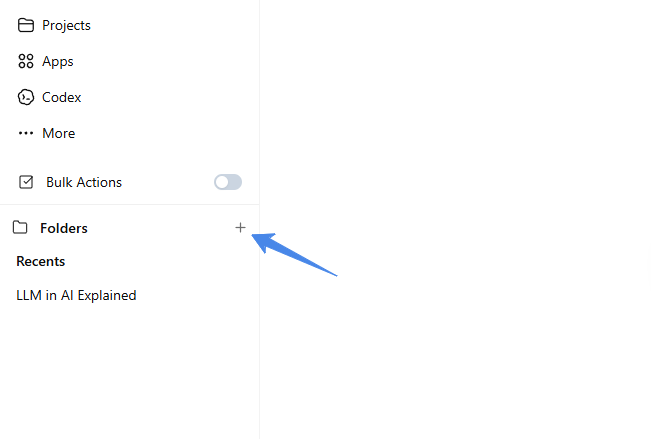
Look at your ChatGPT sidebar. You will see a new Folders section. Click the Plus (+) icon next to it to open the creation modal.
Step 4: Configure Folder Settings
Fill out the details for your new folder:
- Folder Name: Type a name for your folder, such as "Development Logs" or "Client Work". This field is required.
- Choose Color: Select a visual color theme from the color swatches, or click the Custom Color palette button to pick any custom color.
- Choose Icon: Choose a visual preset icon from the grid that matches your folder topic.
- Or Upload Image: Click the upload area to select a custom image file from your computer and use it as the folder icon.
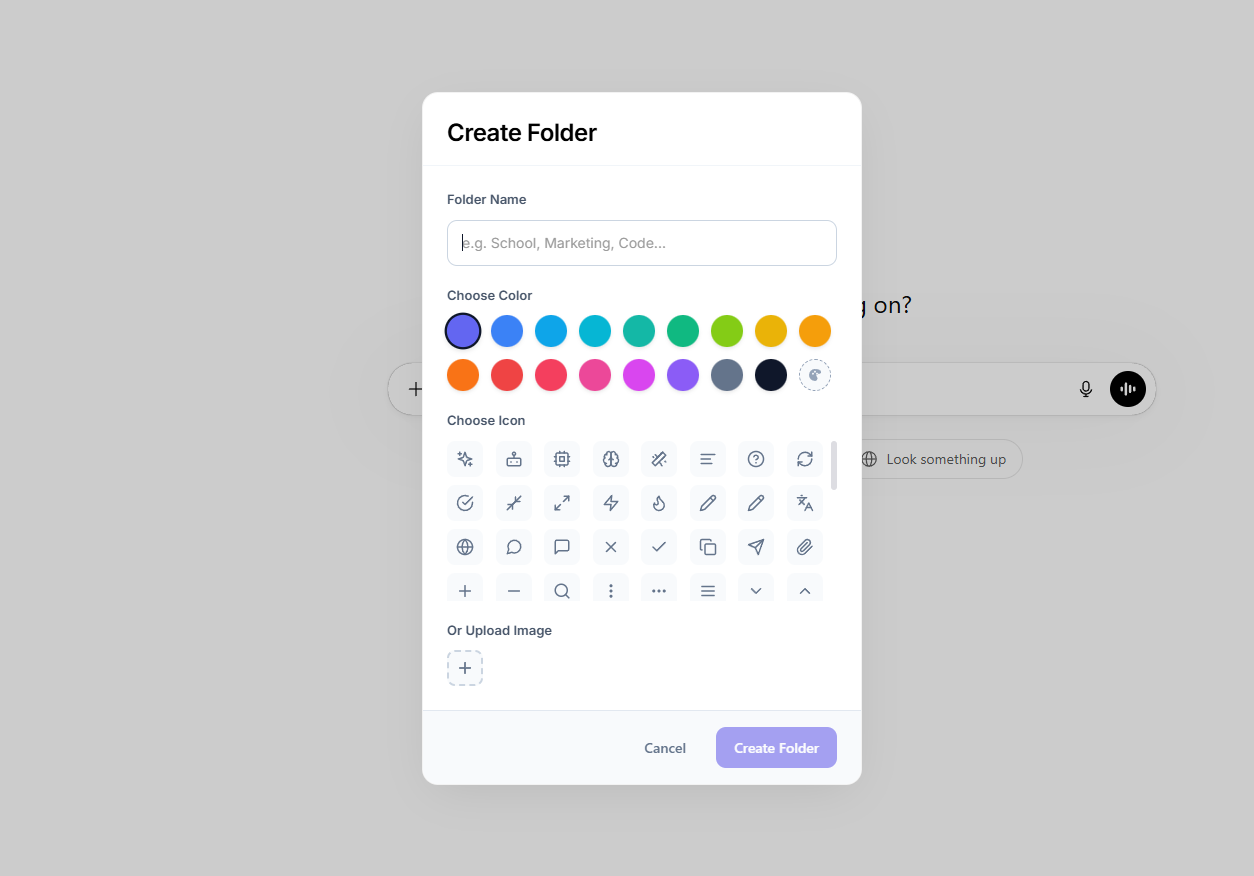
Click Create Folder to add it to your sidebar.
Step 5: Add Chats to Your Folder
You can add conversations to your folder using either of these methods.
Method A: Hover & Save for Single Chats
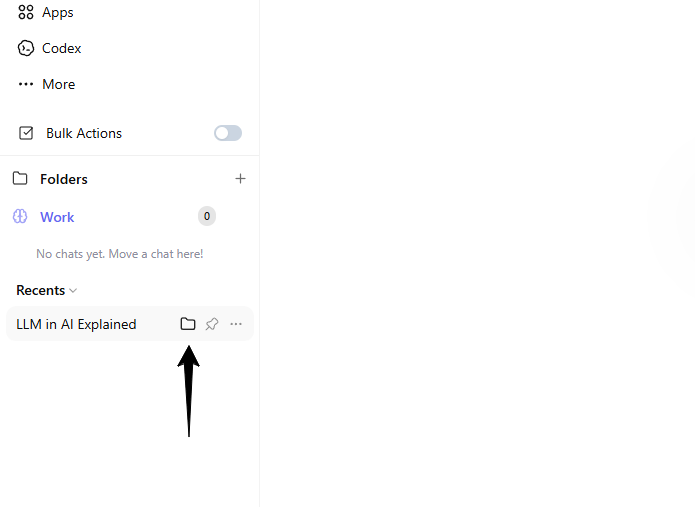
- Hover your cursor over any conversation in your Recents sidebar list.
- Click the Folder icon that appears on the right side of the chat link.
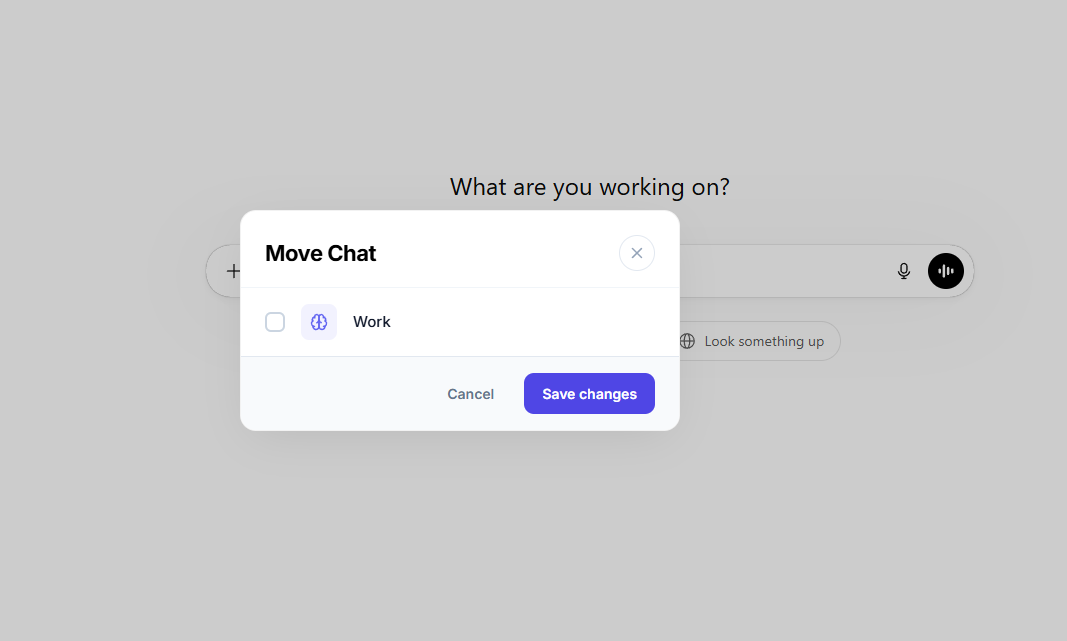
- A Move Chat modal will open. Check the boxes next to the folders you want to add this chat to.
- Click Save changes to confirm.
Method B: Manage Chats Modal for Bulk Adding
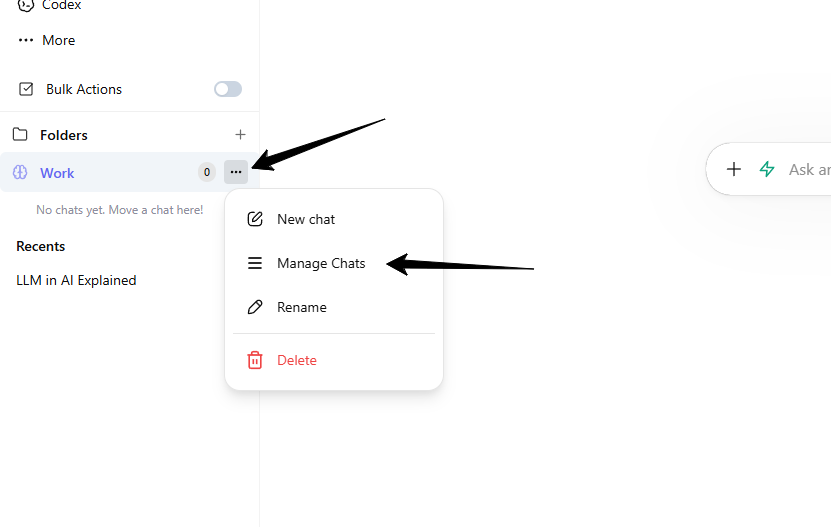
- Hover over the folder name in your sidebar and click the three dots (...) menu icon.
- Select Manage Chats from the dropdown menu.
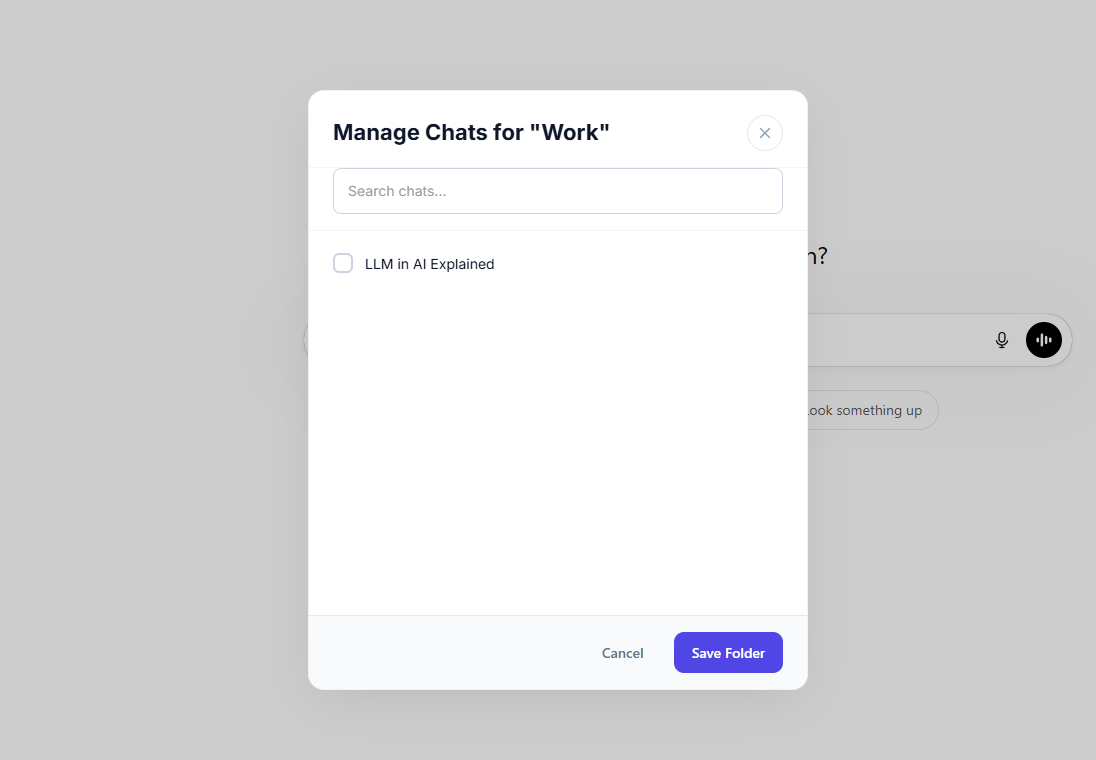
- A search modal will appear. Check the boxes next to the chats you want to add.
- Use the search bar at the top to filter through your history when needed.
- Click Save Folder to confirm.
Step 6: Folder Options
Hover over a recent chats and click the three dots (...) menu icon and click the move to folder.
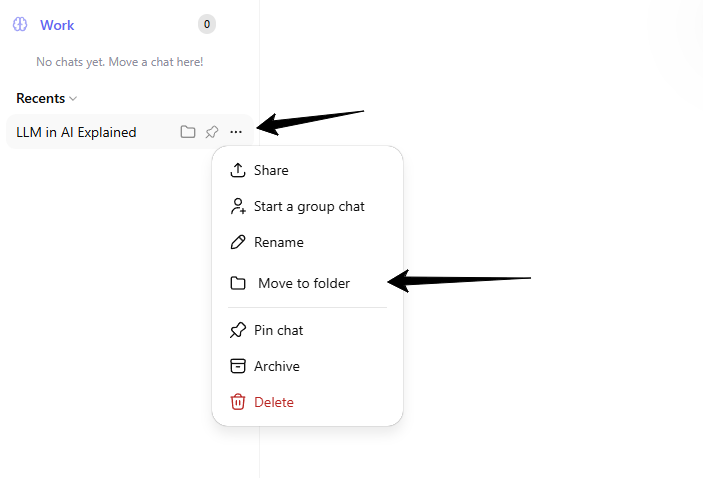
A Move Chat modal will open. Check the boxes next to the folders you want to add this chat to.
Click Save changes to confirm.