NAToolKit works across ChatGPT, Google Gemini, and Claude — but Gemini and Claude support needs to be enabled first from the NAToolKit settings panel. This takes under a minute.
Step 1: Open NAToolKit Settings
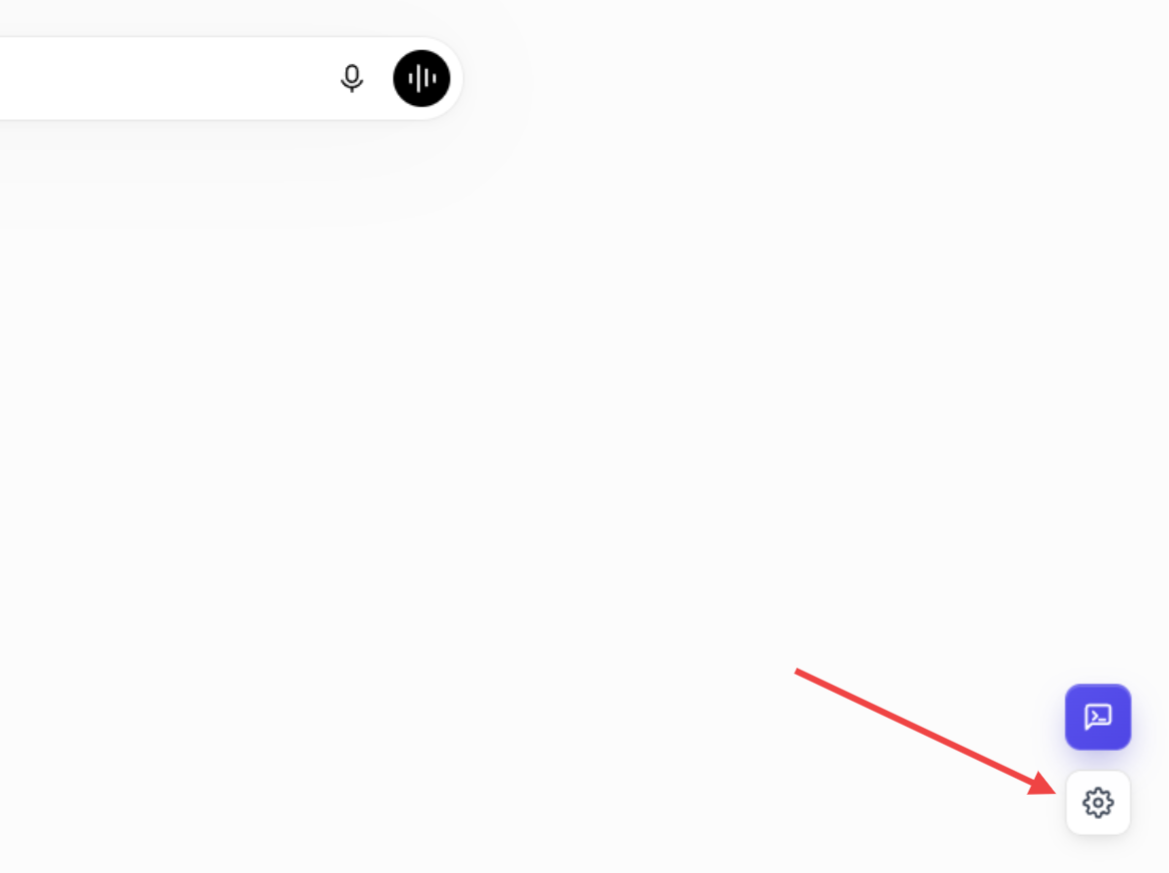
Go to chatgpt.com and look for the NAToolKit Settings gear icon injected in the bottom corner of the ChatGPT. Click it to open the settings panel.
Step 2: Navigate to Platforms
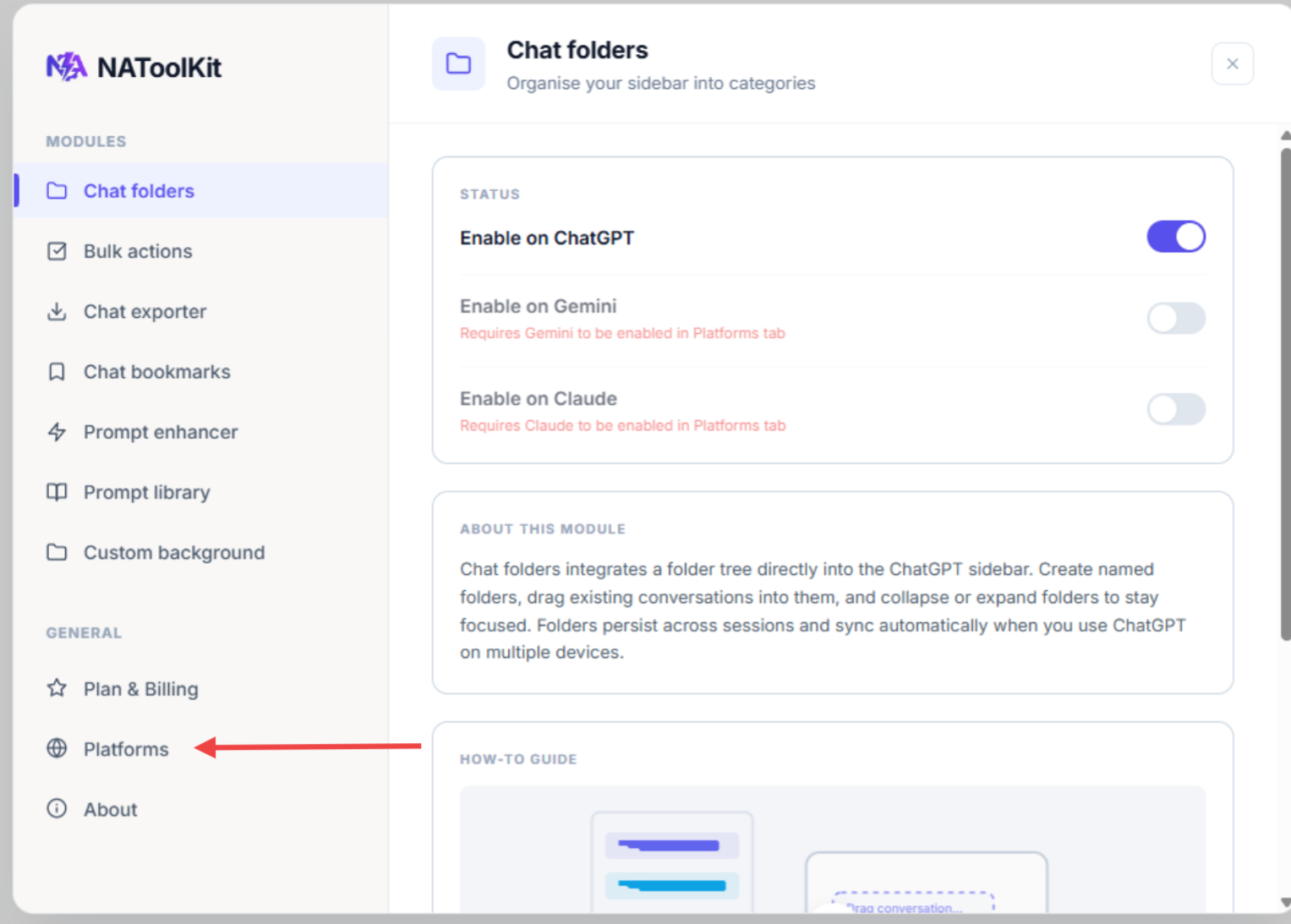
Inside the settings panel, find and click the Platforms tab. This section controls which AI platforms NAToolKit is active on.
Step 3: Enable Your Platform
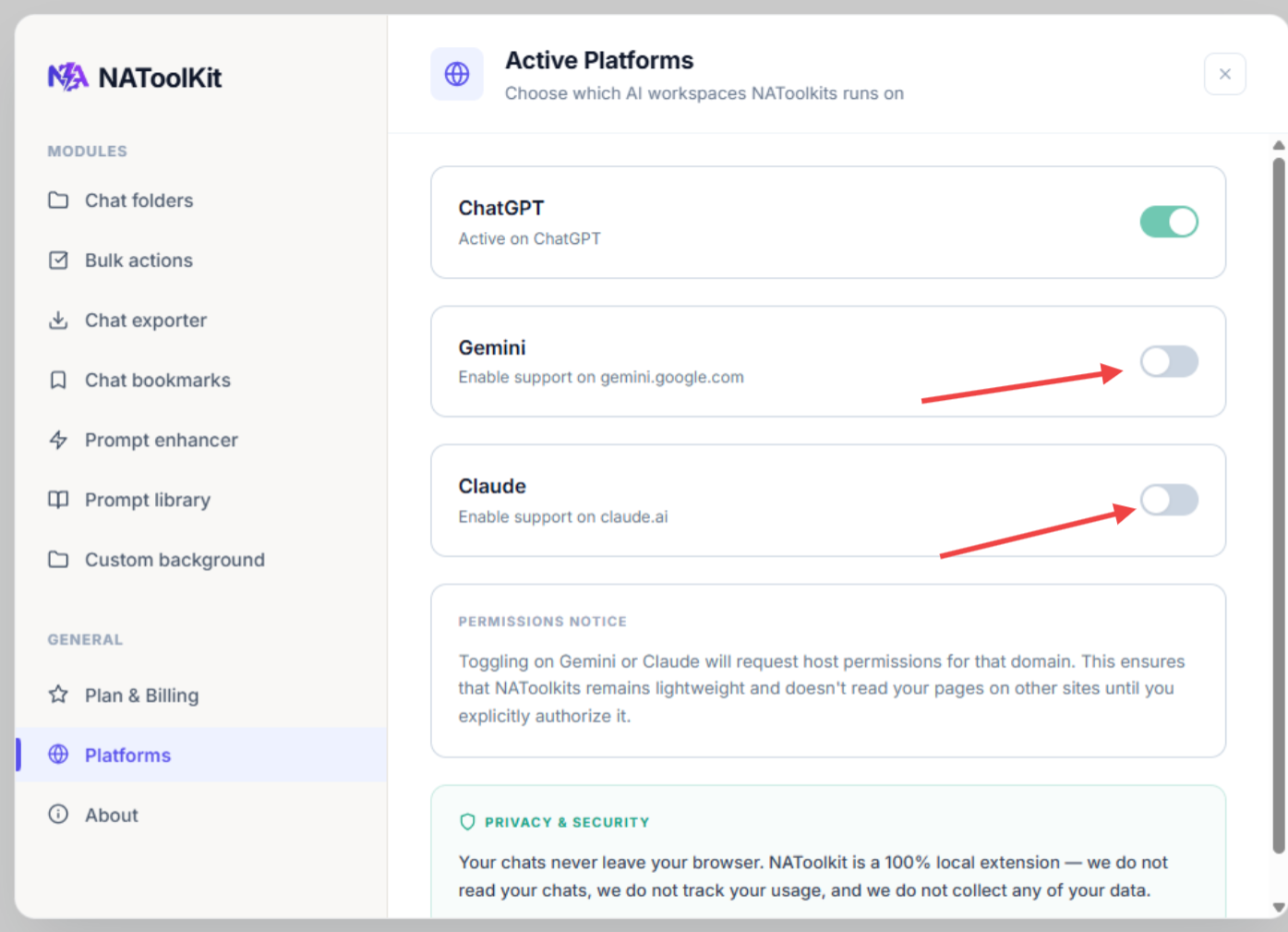
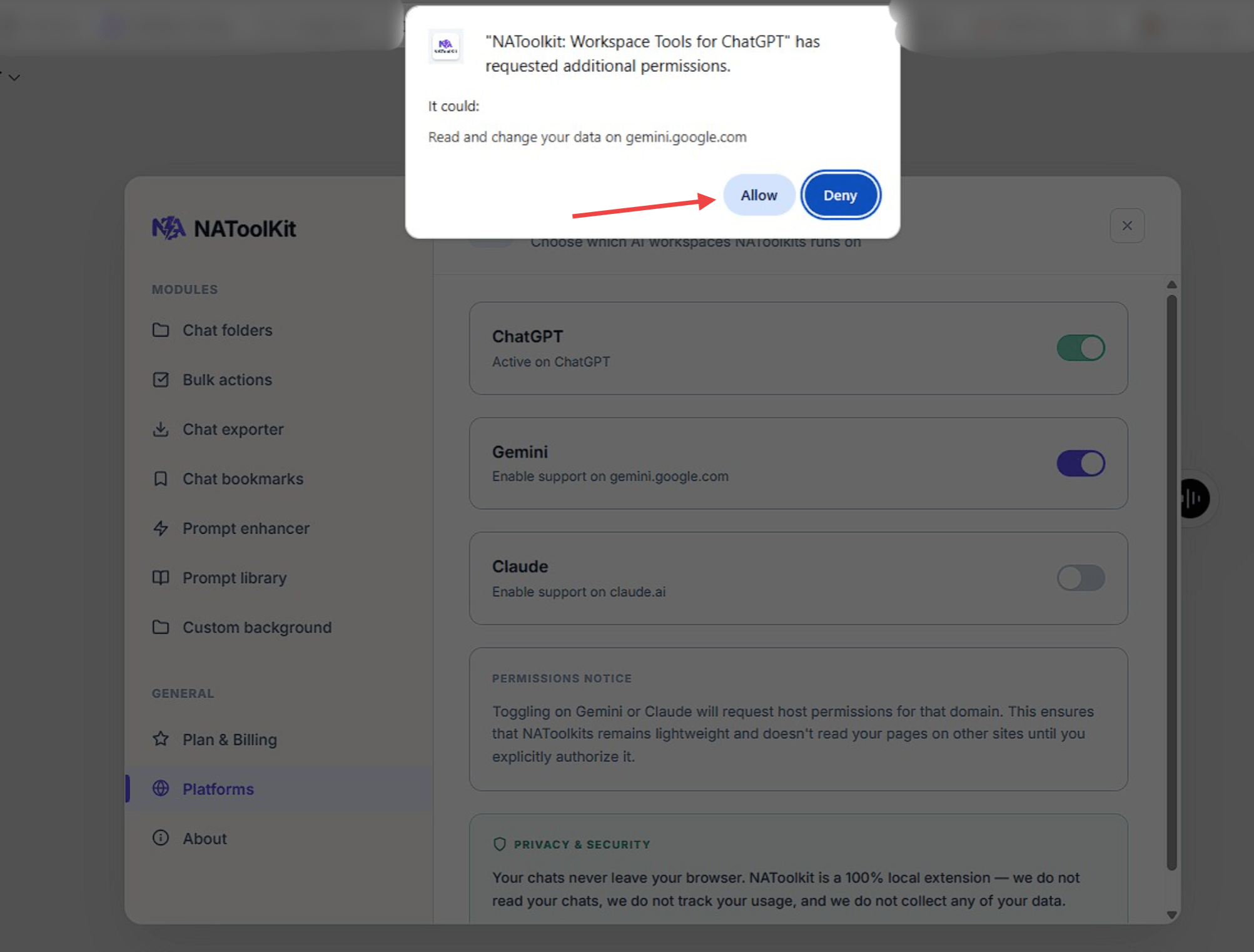
You will see toggles for each supported platform — including Google Gemini and Claude. Flip the toggle to On for the platform you want to activate.
Step 4: Allow Permissions
Your browser will show a permissions prompt asking NAToolKit to access the selected platform's site. Click Allow to grant access. This is required for the extension to inject its features into Gemini or Claude.
Step 5: Visit the Platform
That's it! Now open the platform you just enabled:
- For Google Gemini — go to gemini.google.com
- For Claude — go to claude.ai
You will see all NAToolKit features — folders, bookmarks, prompt library, and more — active directly inside the interface.