
The Message Queue (Prompt Queue) lets you batch prompts seamlessly without waiting for your AI model to finish streaming its response. Type your follow-up ideas, press Tab to queue them hands-free, and let NAToolkits automatically dispatch each prompt sequentially the moment your AI model completes its turn across ChatGPT, Claude, and Google Gemini.
Step 1: Open Settings & Enable Platforms
Click the NAToolkits extension icon in your browser toolbar, or click the Settings gear icon injected into the sidebar of your active chat interface.
To use Message Queue across multiple AI providers:
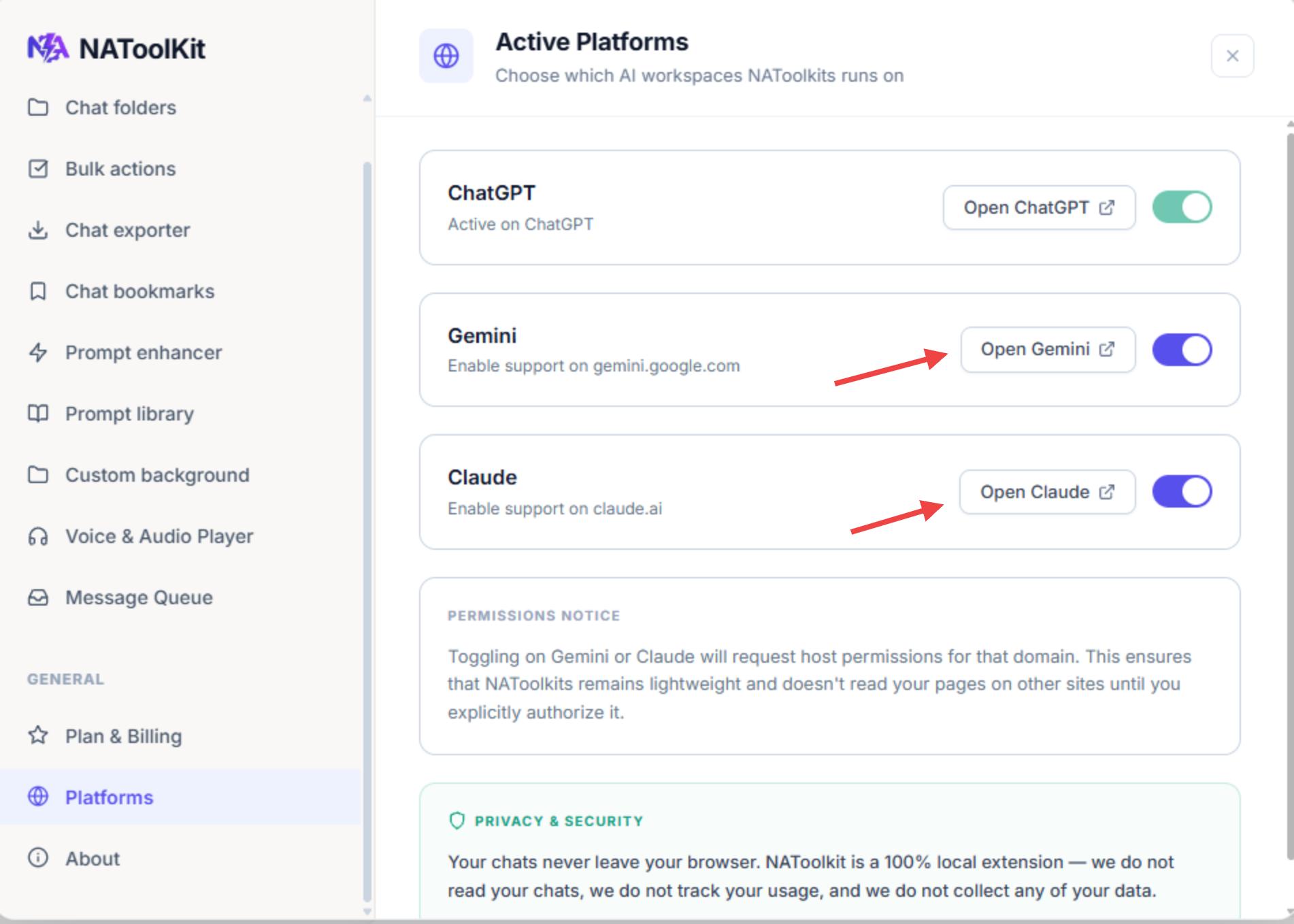
- Inside the settings modal, navigate to the Platforms tab.
- Ensure the toggle is turned On for your target AI platform (ChatGPT, Google Gemini, or Claude). Grant browser host permissions when prompted if activating Gemini or Claude for the first time.
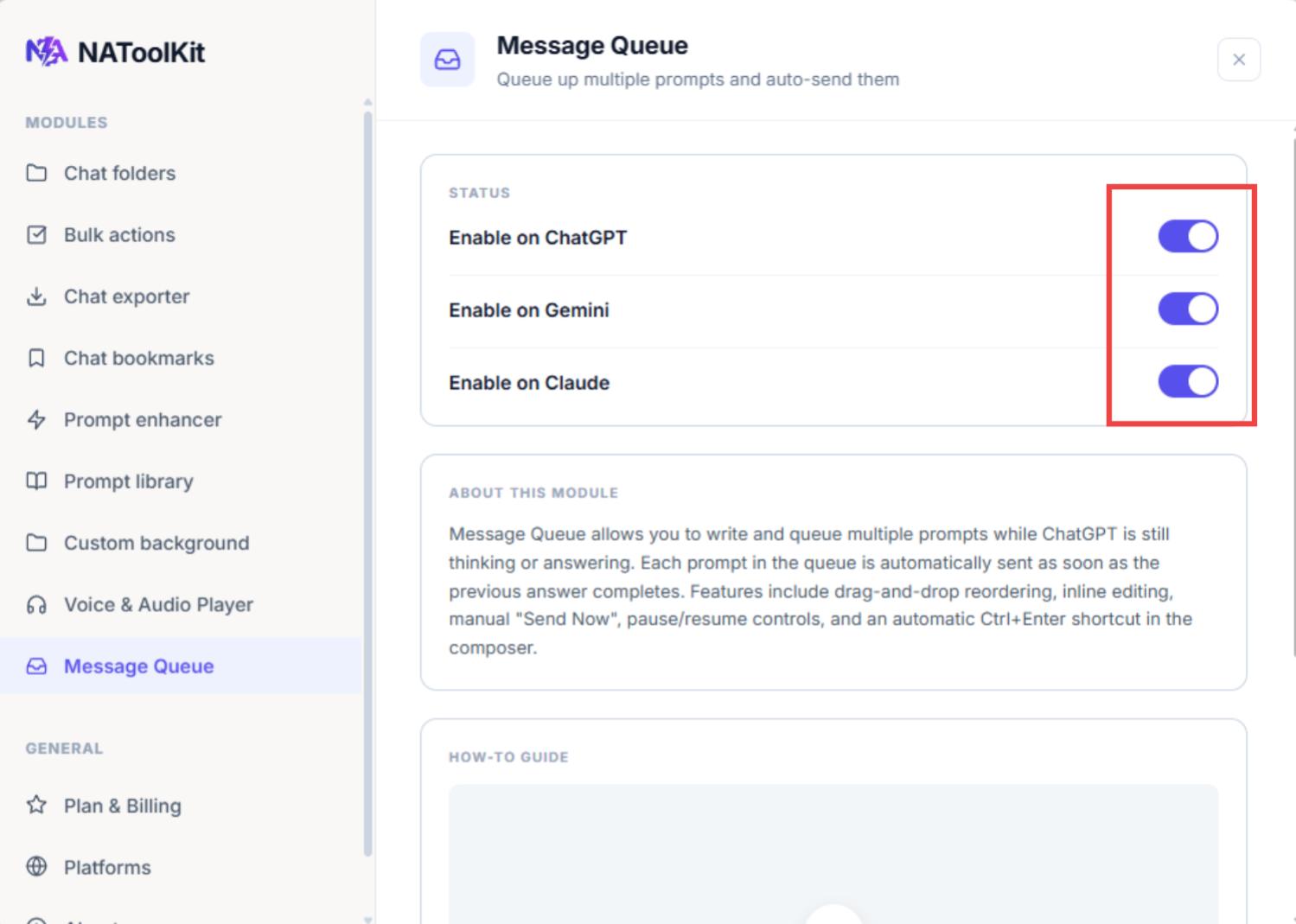
- Switch to the Message Queue feature tab and make sure the status toggle is turned On.
Step 2: Type in Composer & Spot the Ghost Hint
Navigate to your preferred AI chat platform (ChatGPT, Claude, or Google Gemini) and begin typing your next prompt or follow-up question in the chat input box.
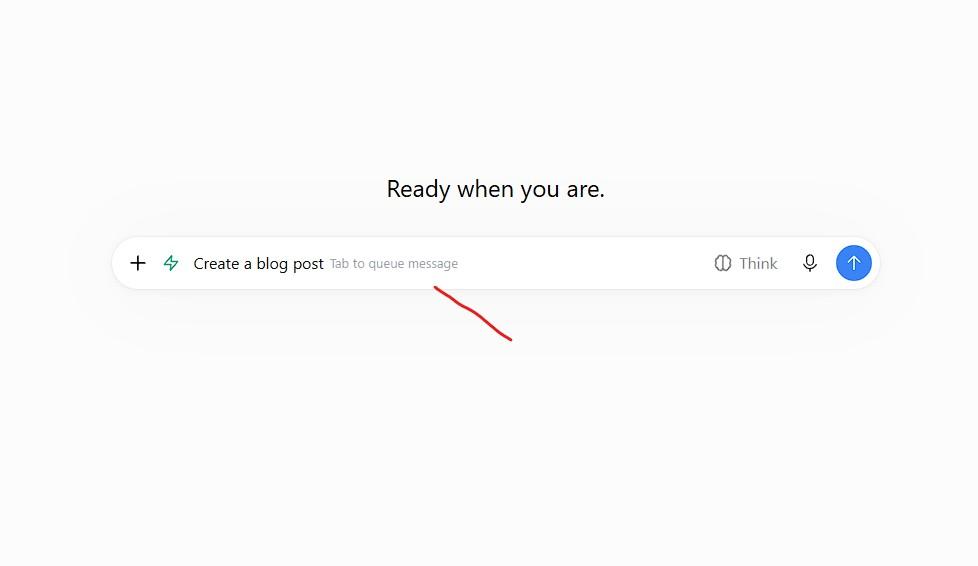
When your text cursor (caret) is positioned at the very end of your typed prompt, an unobtrusive, subtle ghost hint will appear dynamically next to your cursor:
Tab to queue message.
Step 3: Press Tab to Instantly Queue Prompts
Instead of pressing Enter or clicking the Send button, simply tap the Tab key on your keyboard.
NAToolkits will instantly:
- Capture your draft prompt safely into your local browser storage.
- Cleanly clear the composer input across React, ProseMirror, and Quill DOM editors so you are ready to type your next idea immediately.
- Display a quick confirmation toast notification:
Added to queue (#X). - Automatically reveal the floating status pill above the chat box.
Step 4: Monitor State with the Floating Status Pill
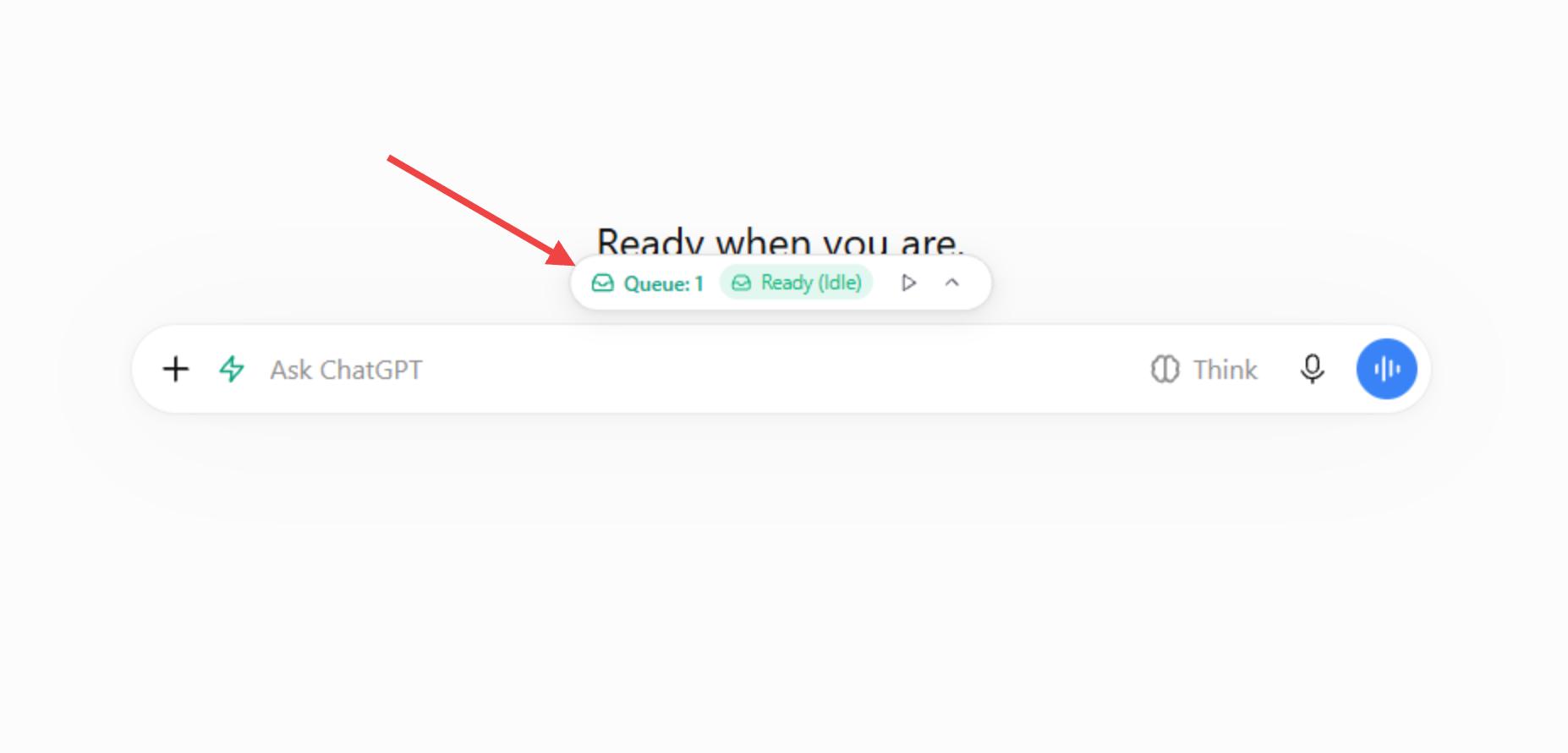
Whenever prompts exist in your queue, a compact, floating Status Pill docks directly above the chat composer. It provides at-a-glance visibility without blocking your reading area:
- Queue Counter Badge: Displays the total count of queued items (e.g.,
Queue: 3). Clicking this badge opens the full Queue Drawer. - Live Status Indicator:
- ● Ready (Idle): Prompts are staged and ready to execute.
- ● Sending...: NAToolkits is injecting and dispatching the prompt into the AI composer.
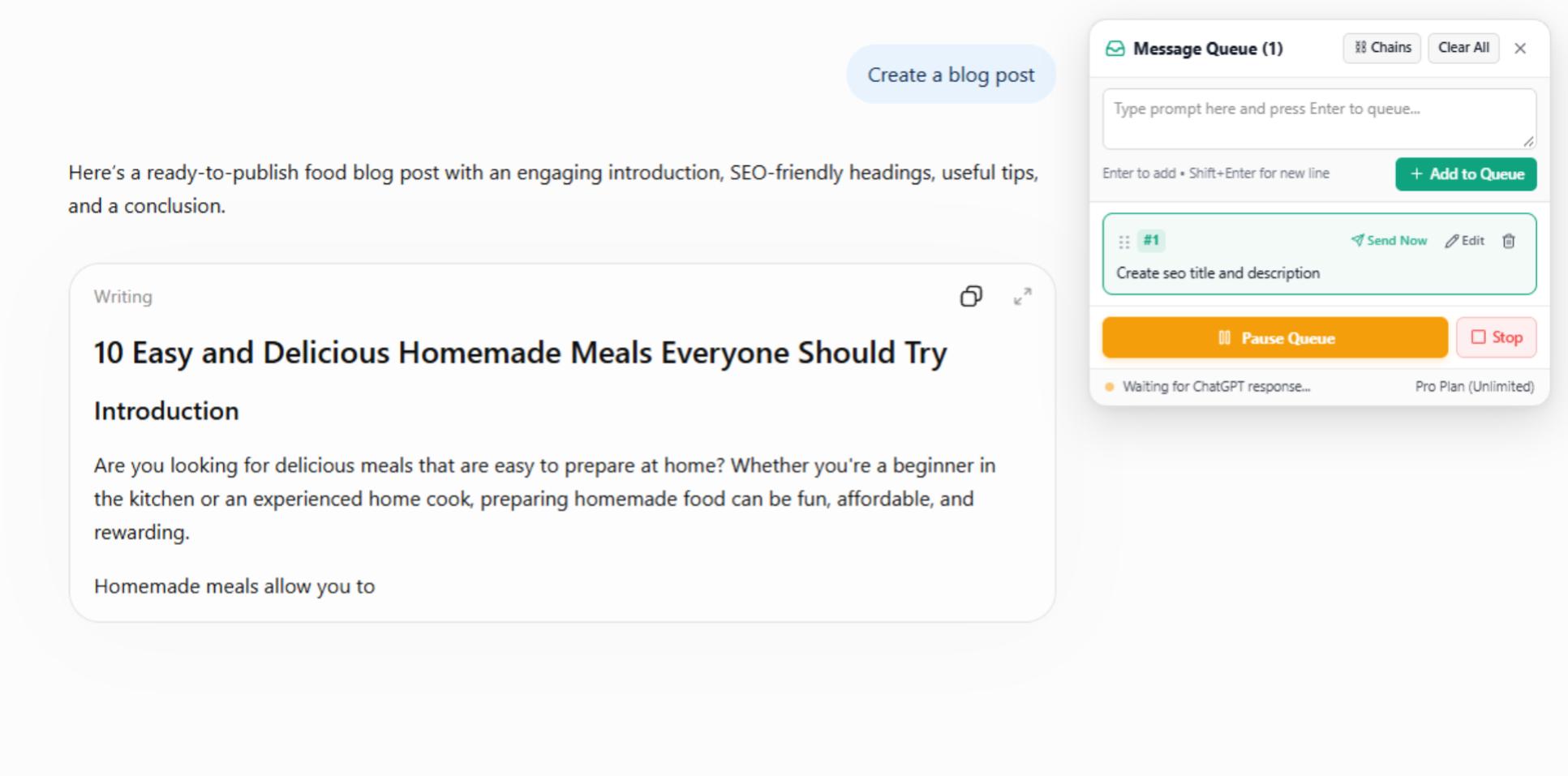
- ● Waiting for reply...: The AI model is actively streaming or thinking; the queue runner is yielding safely until completion.
- ● Paused: The queue has been temporarily halted by the user.
- Quick Controls: Click the Play/Pause icon (
▶/⏸) to start or pause the queue immediately, or click the expand icon (⛶) to toggle the Queue Drawer.
Step 5: Manage, Reorder & Edit in the Queue Drawer
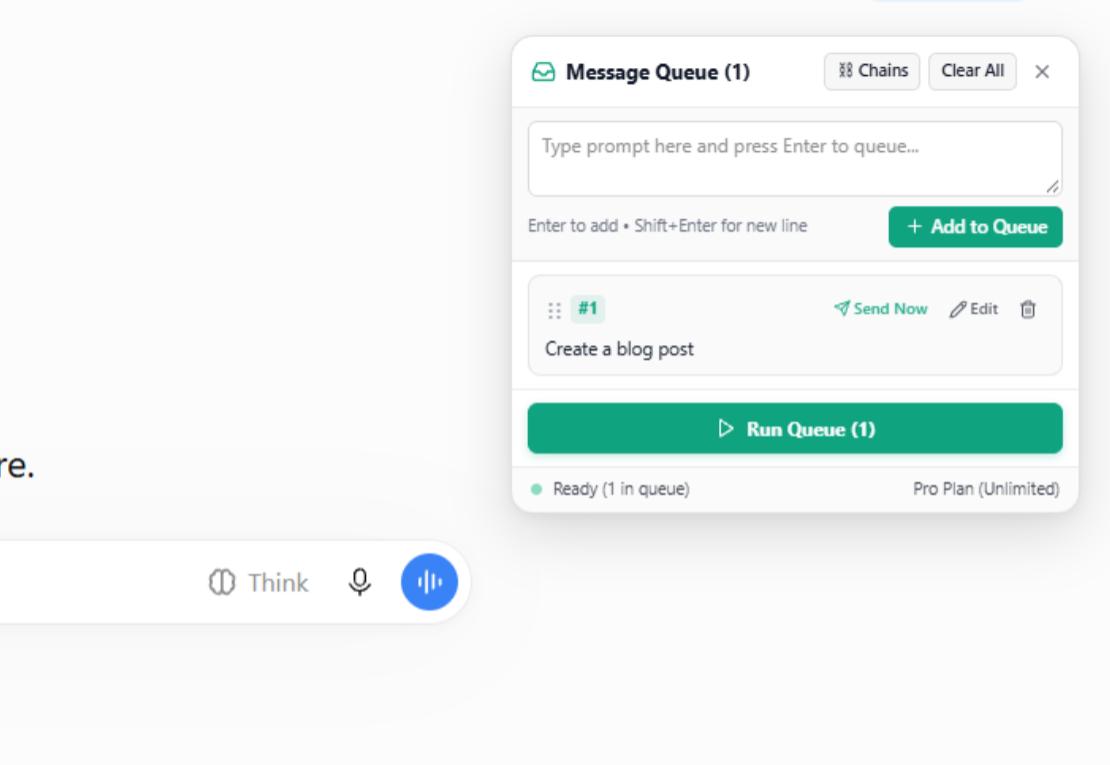
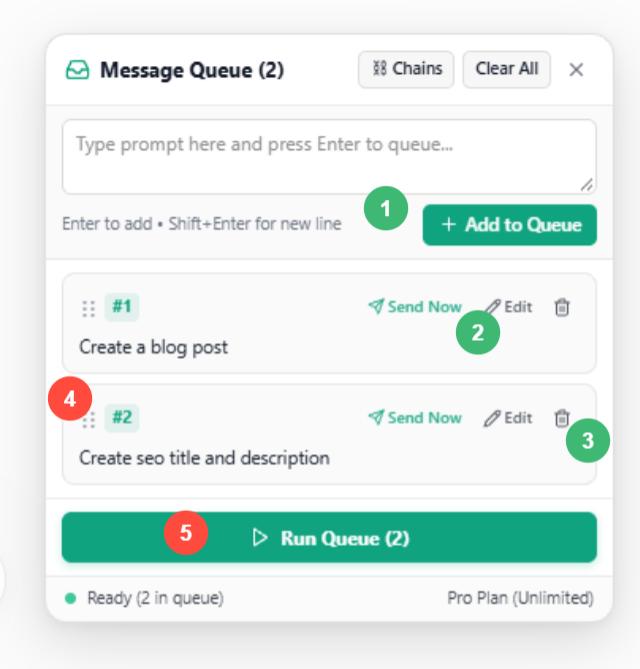
Click on the status pill or the expand button to open the Queue Drawer floating panel in the upper-right corner of your screen. The drawer gives you complete control over your queued prompts:
- Drag-and-Drop Reordering: Click and drag the grab handle (
⋮⋮) on any card to move prompts up or down and change their execution order. - ⚡ Send Now: Jump any prompt straight to position #1 and dispatch it immediately, bypassing the normal wait order.
- ✏ Inline Editing: Click Edit on any card to revise the prompt text right inside the drawer, then click Save to confirm.
- 🗑 Delete & Clear All: Delete individual prompts using the trash icon, or click Clear All in the drawer header to purge your entire queue backlog.
- Quick Add Textarea: Add prompts directly from inside the drawer. Type in the quick input area and press Enter to add (or Shift + Enter for multi-line formatting).
- ⛓ Prompt Chains: Click the ⛓ Chains button in the header to import and run multi-step prompt templates from your Prompt Library.
Step 6: Run Sequential Execution & Auto-Advance
When you are ready to run your sequence, click the high-contrast Run Queue button at the bottom of the drawer (or the play icon on the status pill).
NAToolkits takes over execution completely:
- The top prompt in the queue is automatically injected into the composer and submitted.
- NAToolkits watches the platform's native stop buttons and streaming indicators to monitor model generation.
- As soon as ChatGPT, Claude, or Gemini finishes typing, the next prompt in the queue is submitted without delay.
- When the last item completes, a celebratory notification appears:
🎉 All queued prompts completed!
Pro-Tips & Keyboard Shortcuts
- Rapid-Fire Brainstorming: You don't have to wait for answers while doing deep research. Type 5 questions back-to-back, tapping Tab after each one, and let NAToolkits handle the sequential conversation while you review results.
- Quick Add via Keyboard: Inside the Queue Drawer, typing in the top box and hitting Enter instantly appends a new item to your queue without moving your focus to the main chat composer.
- Emergency Priority with "Send Now": If an urgent thought comes up during a long queue run, open the drawer and click Send Now on that prompt. It will jump ahead of the queue and dispatch immediately.
- Pause Anytime: Need to inspect intermediate output? Click Pause Queue on the status pill or drawer. Your remaining prompts stay preserved in order until you click Resume.
- Pro Plan Unlimited Automation: The Free tier supports up to 5 queued prompts at a time. Upgrading to the Pro plan unlocks unlimited queue depth, perfect for running comprehensive multi-step prompt sequences and long automated workflows.
Frequently Asked Questions
Q: Does Message Queue work on ChatGPT, Claude, and Google Gemini?
A: Yes! Message Queue is fully engineered to support all three platforms. Just ensure the platform is turned on in your NAToolkits Settings under the Platforms tab.
Q: Will a queued prompt ever interrupt the AI while it is still generating?
A: No. NAToolkits includes native stream-yielding detection. It continuously monitors streaming tokens, DOM stop buttons, and thinking spinners across ChatGPT, Claude, and Gemini to ensure the next prompt is dispatched only after the current turn is 100% finished.
Q: What happens if I refresh the page or close the tab?
A: Your queue items and execution states are persisted safely in local extension storage (chrome.storage.local). When you reload your tab, your queued prompts and status will be right where you left them.
Q: Can I edit prompt text after queuing it?
A: Yes. Click the Edit button on any queued card inside the Queue Drawer. You can edit the text in-place and save your changes before the auto-runner reaches that prompt.
Q: Is my prompt data sent to any third-party servers?
A: Never. All queue operations, storage, and auto-dispatch logic run strictly client-side inside your browser sandbox. NAToolkits has zero telemetry, zero analytics, and zero external database connections.
Q: What is the queue limit for Free vs Pro users?
A: Free users can queue up to 5 prompts simultaneously. Pro users enjoy unlimited prompt capacity with no daily or batch restrictions.