
Prompt Chains turns complex, multi-turn AI interactions into fully automated sequential pipelines. Instead of babysitting your screen and manually copying and pasting prompt after prompt, you can define multi-step sequences with dynamic {{Variables}} and execute the entire workflow hands-free across ChatGPT, Claude, and Google Gemini.
Step 1: Open Settings & Enable Platforms
Click the NAToolkits extension icon in your browser toolbar or the Settings gear icon in your AI sidebar to open the configuration panel.
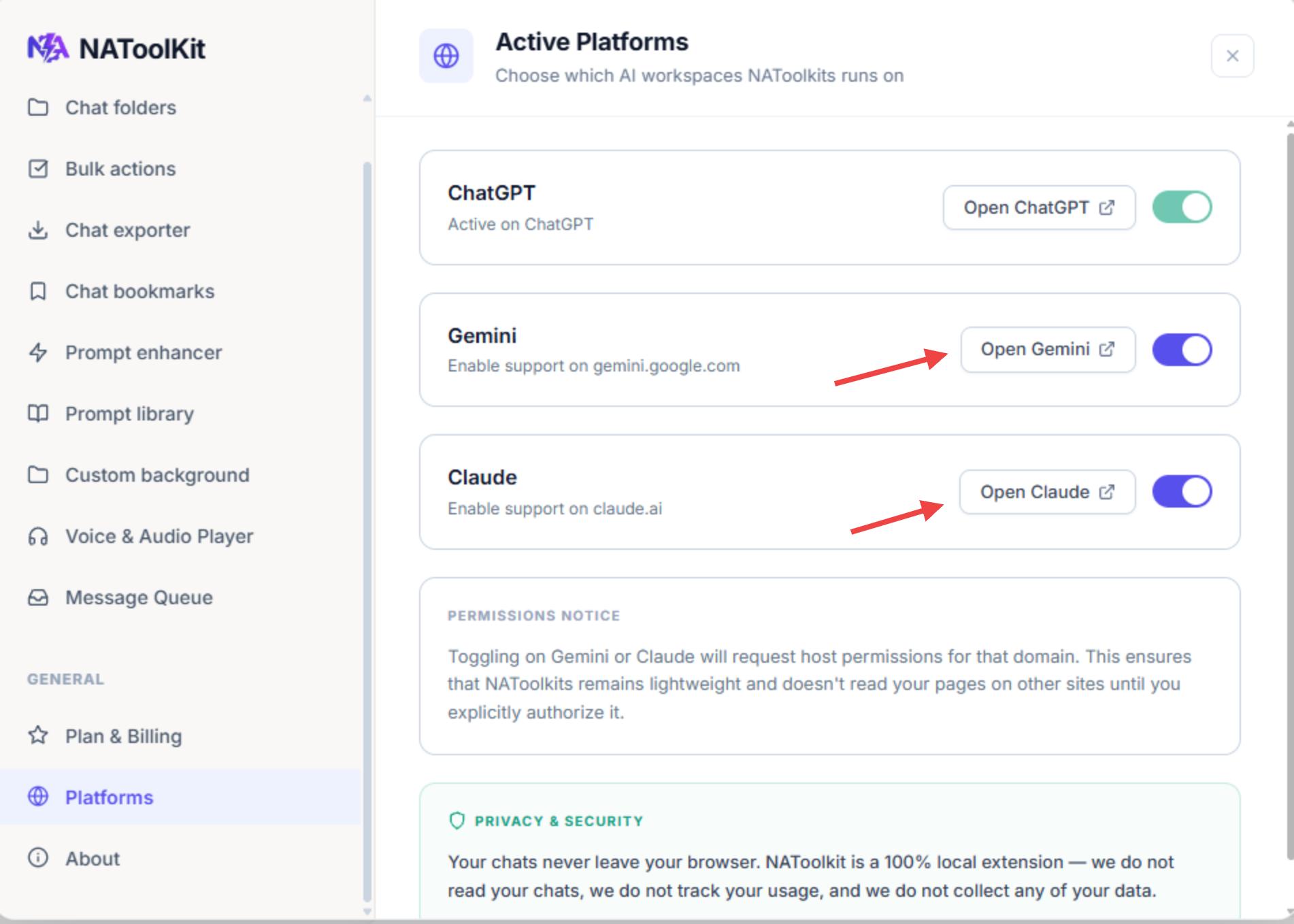
Ensure platform support and required execution engines are active:
- Click the Platforms tab in the Settings sidebar.
- Switch the toggle to On for your target platform—ChatGPT, Google Gemini, or Claude. If prompted by your browser, click Allow to grant host access permissions.
- Switch to the Prompt Chains tab and make sure the feature status is turned On.
- Because Prompt Chains relies on the batch execution runner, verify that the Message Queue module is also active.
Step 2: Access the Chains Tab in Prompt Library
Open the Prompt Library by clicking the bookmark or library icon in your sidebar, or by clicking the floating NAToolKit Speed-Dial Hub in the bottom-right corner.
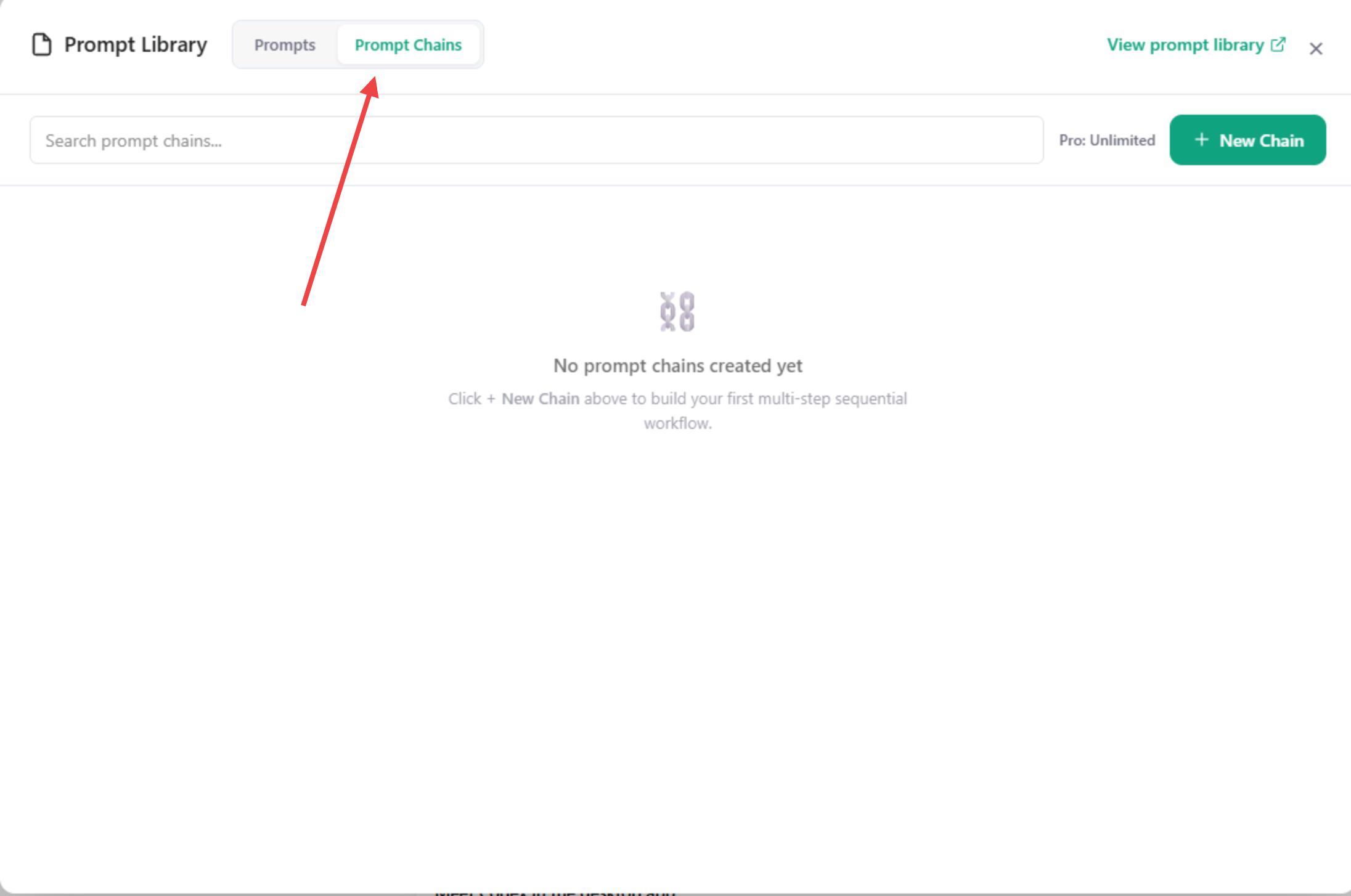
In the Prompt Library header navigation, click the dedicated Chains tab (indicated with the ⛓ icon and a step badge). Here you will see all your custom pipelines, a search bar, and your active chain tier quota (e.g., Free: 1/2 or Pro: Unlimited).
Step 3: Build a Custom Pipeline in the Chain Builder
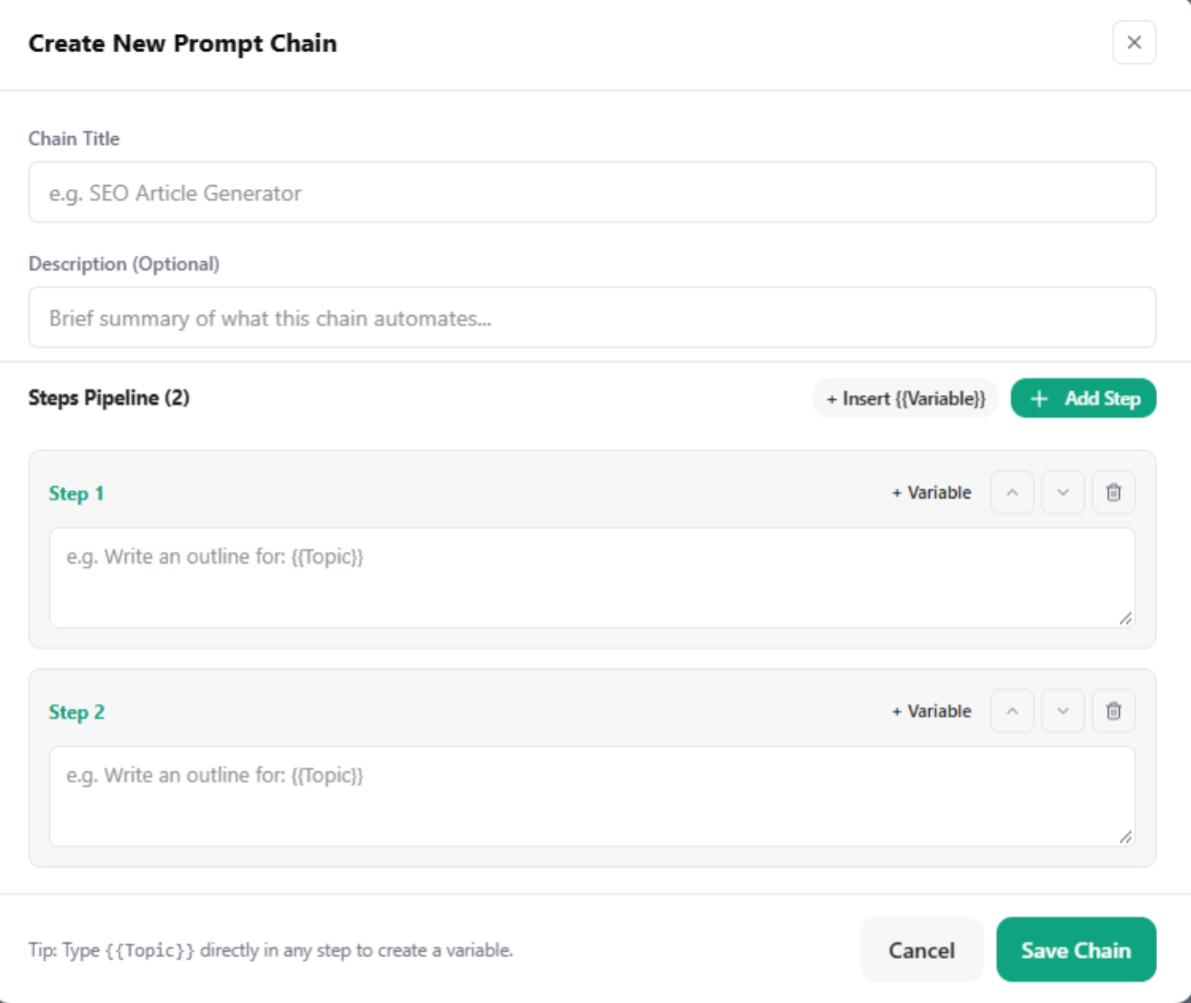
Click the + New Chain button in the top-right corner of the Chains view to launch the interactive Chain Builder modal:
- Chain Title: Give your pipeline a recognizable name, such as SEO Article Pipeline, Code Review & Refactor, or Customer Support Email Generator.
- Description (Optional): Add a short description summarizing what the chain achieves.
- Step Pipeline: Enter your sequential prompts into each numbered step card:
- Click + Add Step to add consecutive prompt turns to your workflow.
- Use the Move Up (▲) and Move Down (▼) buttons on any step card to quickly rearrange execution order.
- Click the trash icon (🗑) to delete any unnecessary step.
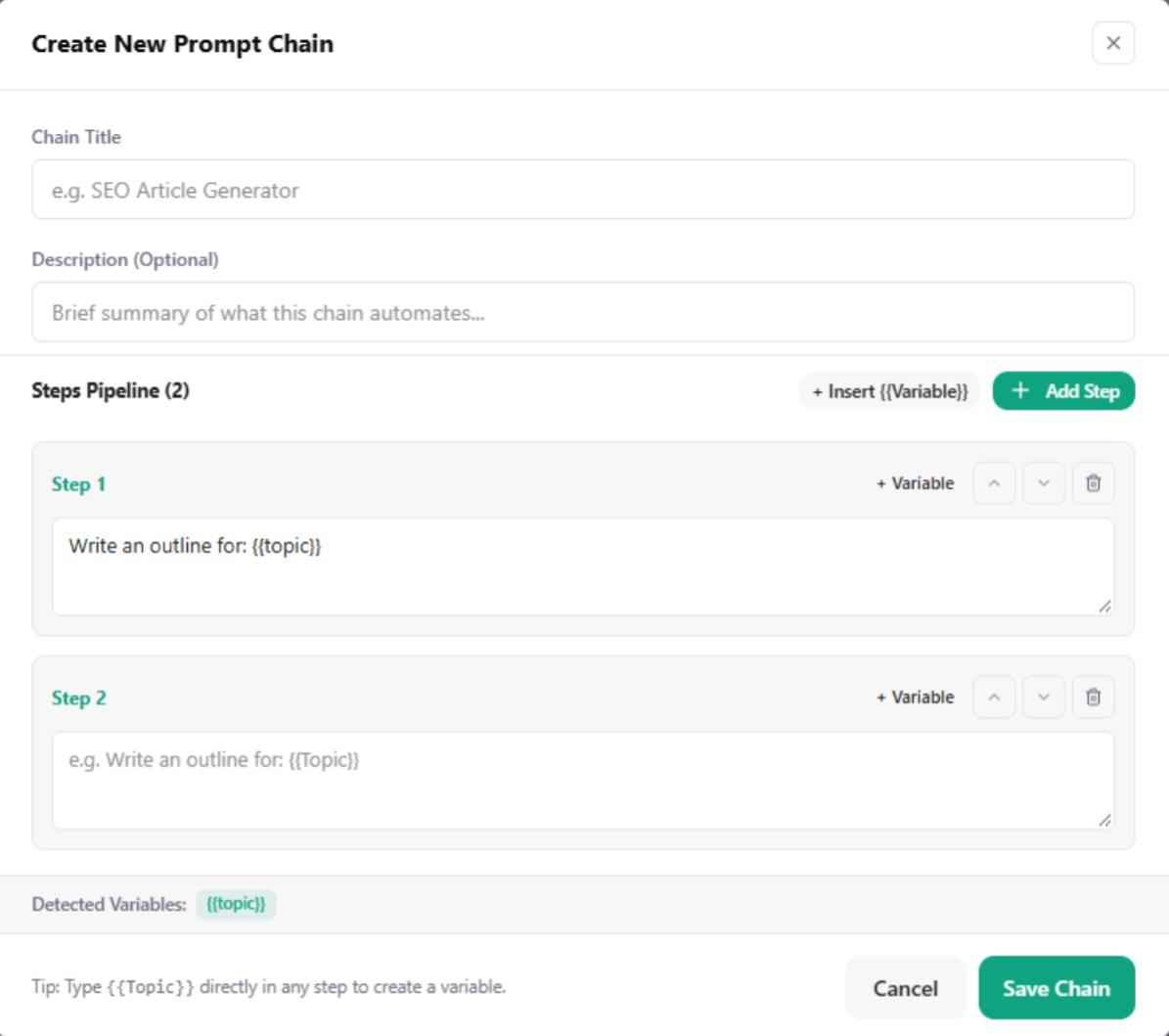
- Insert Dynamic Variables: Use curly braces to denote custom placeholders, such as
{{Topic}},{{Language}}, or{{Target Audience}}. You can type them directly or click the + Variable helper button. NAToolkits automatically detects and highlights all variables at the bottom of the modal.
When you are done drafting your pipeline, click Save Chain.
Step 4: Fill in Dynamic Variables
When you are ready to use your workflow, find its card in the Chains tab and click ▶ Run Chain.
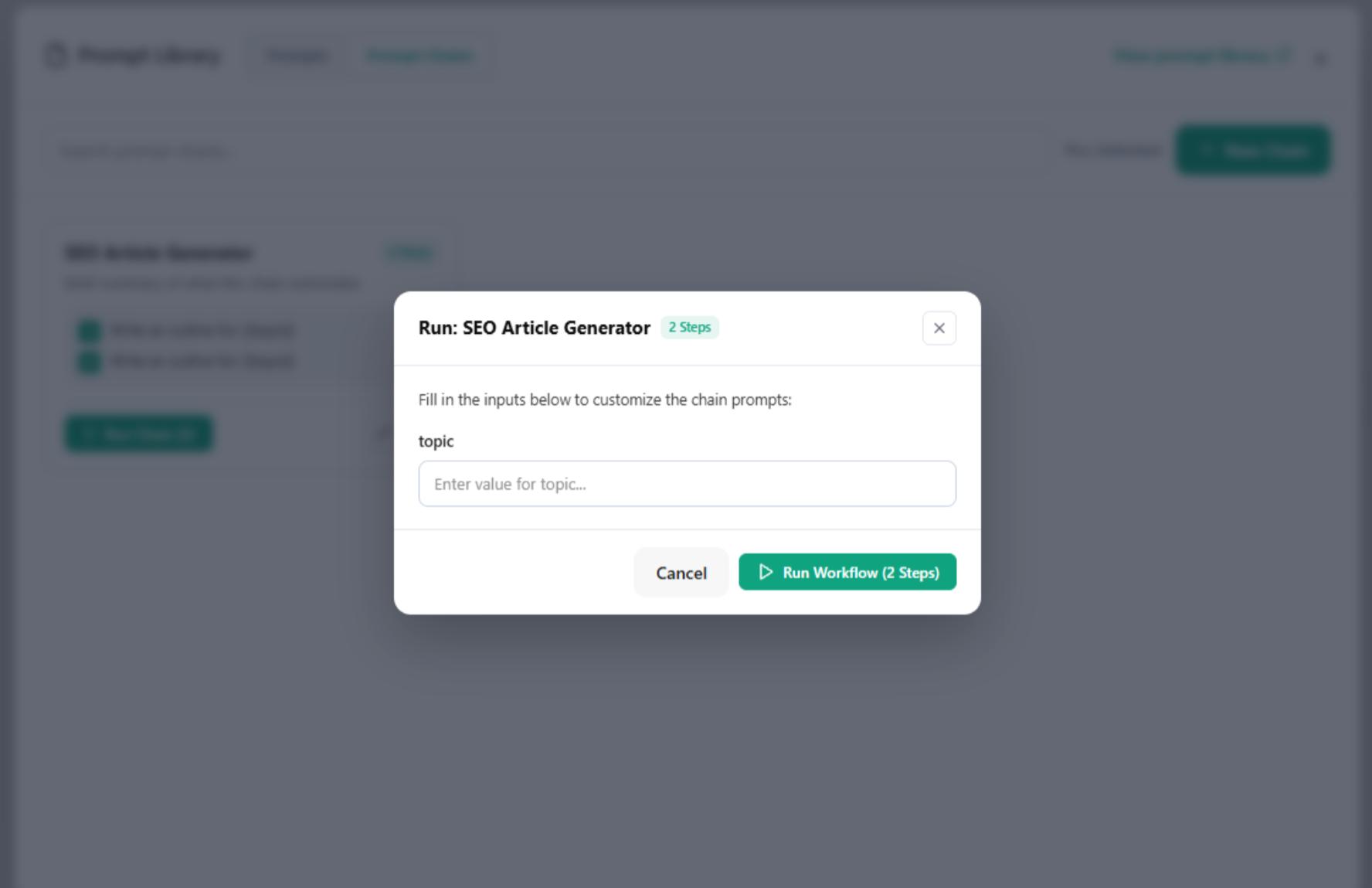
If your chain contains dynamic variables (such as {{Topic}} or {{Tone}}), NAToolkits automatically intercepts execution and opens the clean Run Workflow dialog:
- Each unique variable extracted from across all pipeline steps appears as a dedicated input field.
- Type your desired values for this execution run.
- Press Enter or click ▶ Run Workflow to replace all placeholders across every step simultaneously.
Step 5: Run Automated Sequential Execution
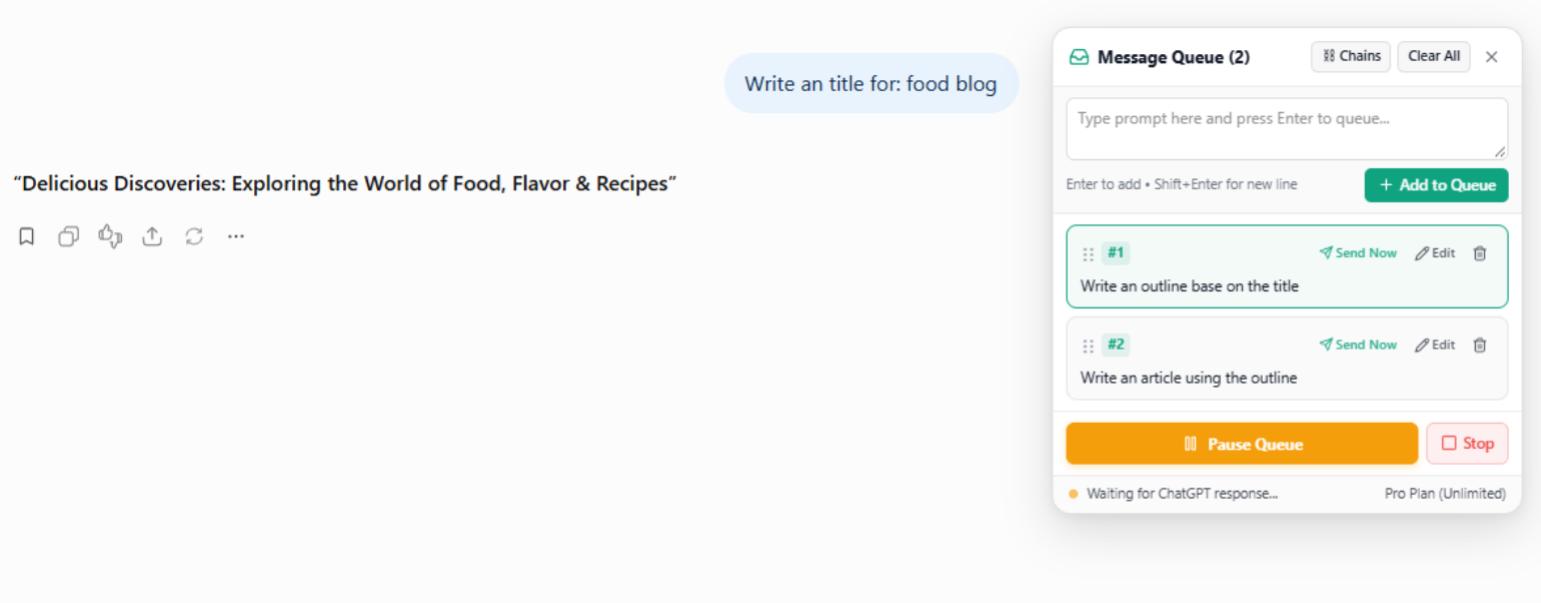
Once confirmed, the Prompt Library and Variable modals close, and NAToolkits hands off the resolved prompt steps directly to the Message Queue auto-drain runner:
- Step 1 Submits Immediately: The initial prompt is automatically injected into the chat composer and sent to the AI model.
- Stream Yield Protection: NAToolkits observes the model's DOM state, streaming tokens, and stop buttons. The runner waits safely while the model generates its response.
- Auto-Advance Next Turn: As soon as ChatGPT, Claude, or Gemini finishes typing Step 1, Step 2 is injected and submitted automatically without any manual intervention.
- Context Compounding: Because each prompt executes within the same conversation thread, subsequent steps naturally build upon the AI's earlier outputs.
- Completion Notification: When the final step concludes, an alert toast confirms:
🎉 All queued prompts completed!
Step 6: Manage, Search & Edit Existing Chains
Your saved chains are easily manageable right from the Chains tab:
- Instant Search: Use the top search bar to filter chains in real-time by title, description, or prompt step contents.
- ✏ Inline Editing: Click the pencil edit icon on any workflow card to open the Chain Builder, modify prompt steps, or add new variables.
- 🗑 Delete: Click the trash icon to remove any chain you no longer need.
- Direct Access via Message Queue: You can also access your chains while working in a chat by clicking the ⛓ Chains button inside the floating Queue Drawer header.
Pro-Tips & Keyboard Shortcuts
- Multi-Step Context Compounding: Leverage the conversational memory of LLMs. Design Step 1 to generate an extensive outline, Step 2 to expand Section 1, and Step 3 to review the draft for factual consistency.
- Reusable Multi-Variable Placeholders: You can reuse the exact same variable (e.g.,
{{Topic}}) in multiple steps. You only need to type the value once in the Run modal, and NAToolkits populates it everywhere. - In-Flight Tweaks via Queue Drawer: If you realize you want to adjust Step 3 while Step 1 is still generating, click the Queue Pill to expand the drawer and edit Step 3 inline before the runner reaches it.
- Quick Keyboard Submission: In the Run Variable modal, typing in the last input field and tapping Enter launches the workflow immediately without touching the mouse.
- Free vs. Pro Capacity: The Free tier allows up to 2 custom prompt chains. Pro plan users unlock unlimited prompt chains with infinite sequential steps for power workflows.
Frequently Asked Questions
Q: Does Prompt Chains work across ChatGPT, Claude, and Google Gemini?
A: Yes! Prompt Chains operates universally on all three AI platforms. Just make sure the target platform is turned on in your NAToolkits Settings under the Platforms tab.
Q: How does NAToolkits know when to trigger the next prompt step?
A: NAToolkits monitors the active DOM tree using intelligent stream-yielding observers. It tracks streaming tokens, stop buttons, and model thinking spinners across ChatGPT, Claude, and Gemini to ensure the next prompt is never submitted while the model is still generating.
Q: Can I use different variables in different steps?
A: Yes. You can include as many distinct variables as you like (e.g., {{Topic}} in Step 1, {{Audience}} in Step 2, and {{Tone}} in Step 3). The Run modal automatically parses and presents fields for all unique variables found.
Q: What happens if I want to pause execution mid-chain?
A: Simply click the Pause (⏸) button on the floating status pill or inside the Queue Drawer. Execution halts safely after the current step, and you can resume anytime by clicking ▶ Run.
Q: Are my prompt chains uploaded to any external server?
A: No. All chain templates, variables, and step configurations are stored locally in your browser sandbox using chrome.storage.local. Your proprietary workflows never leave your device.
Q: What are the limits for Free versus Pro plans?
A: Free users can create up to 2 custom prompt chains. Upgrading to Pro gives you unlimited prompt chains and unlimited sequential steps per chain.