
Prompt Library stores a personal collection of reusable prompt templates, with support for dynamic variables that get filled in at the time of use.
Use Prompt Library for prompts you run frequently with slight variations, such as code reviews, writing briefs, or structured analysis workflows.
Step 1: Open Settings
In the settings dashboard, navigate to the Prompt library tab and toggle the status to On.
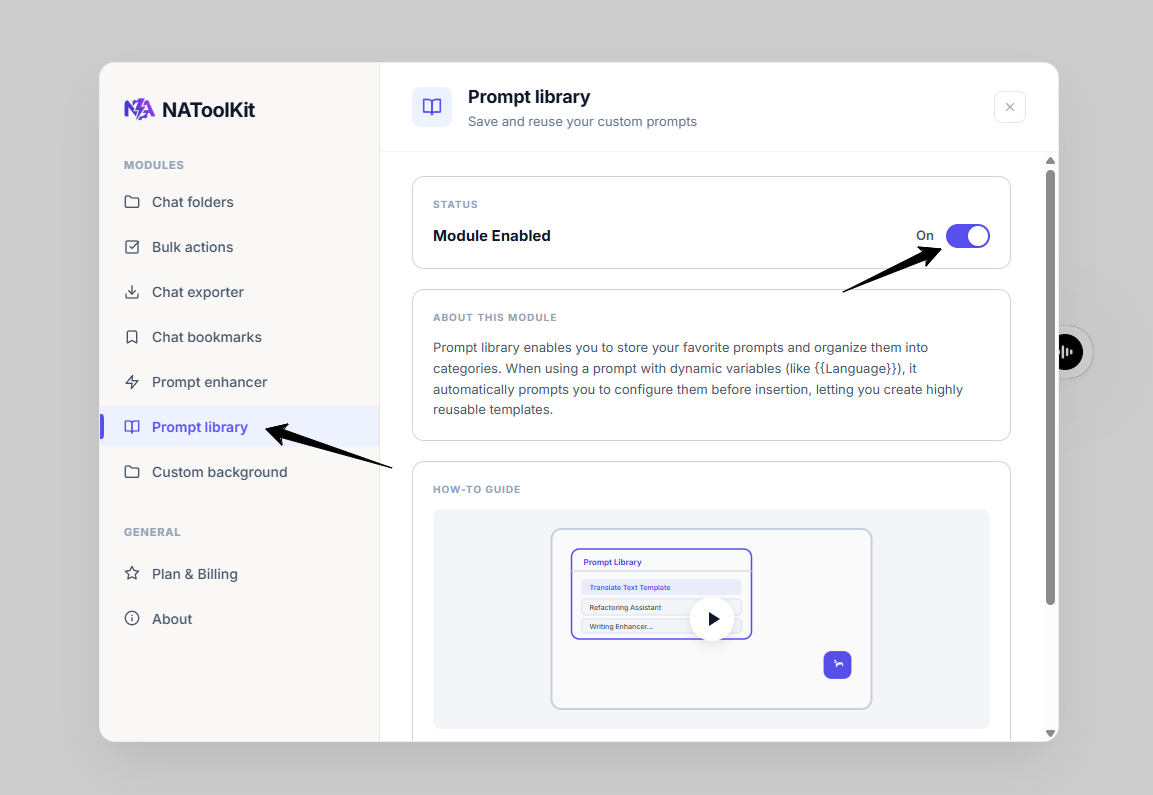
settings dashboard.
Step 2: Access the Library
Click the floating Prompt Library bubble icon in the bottom-right corner of your browser. This opens the library modal.
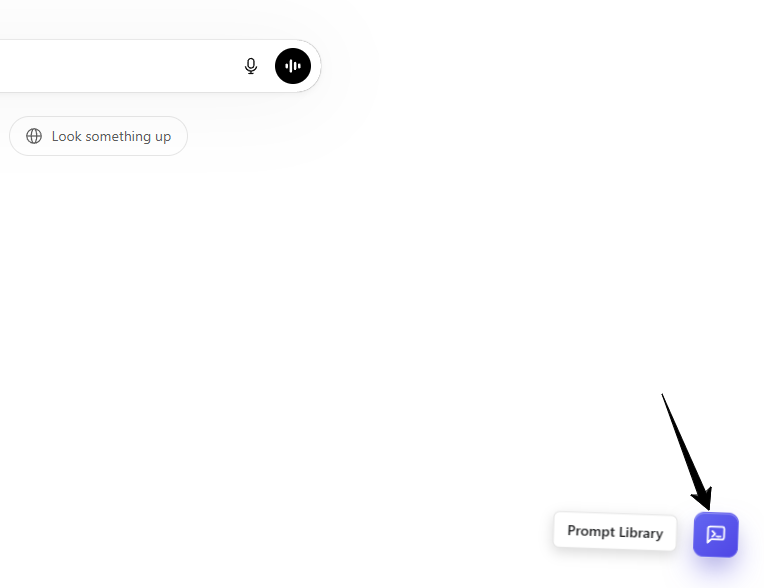
Floating Prompt Library button.
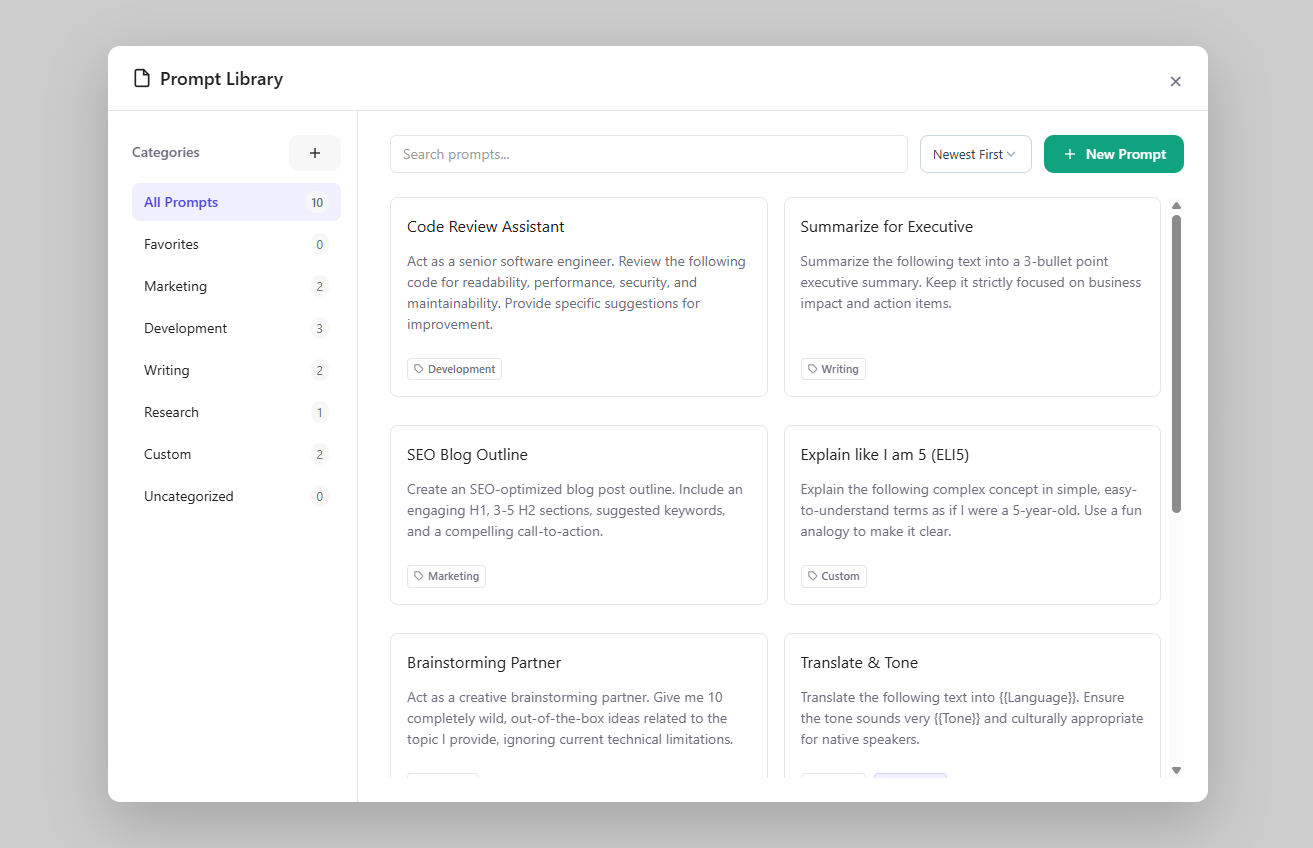
Prompt Library modal.
Step 3: Create & Organize Templates
- Create a Prompt: Click New Prompt, enter a title, select a category, write your prompt in the Content area, and click Save.
- Use Variables: Wrap variable placeholders in double curly brackets, such as
{{TargetPersona}}or{{Language}}. A variables editor card will appear below for help text and default values. - Manage Categories: Click the Plus (+) button in the left sidebar to create custom categories. Hover over custom categories to edit or delete them.
- Favorites: Click the Star icon on any prompt card to star it. Starred prompts automatically move to favorite category.
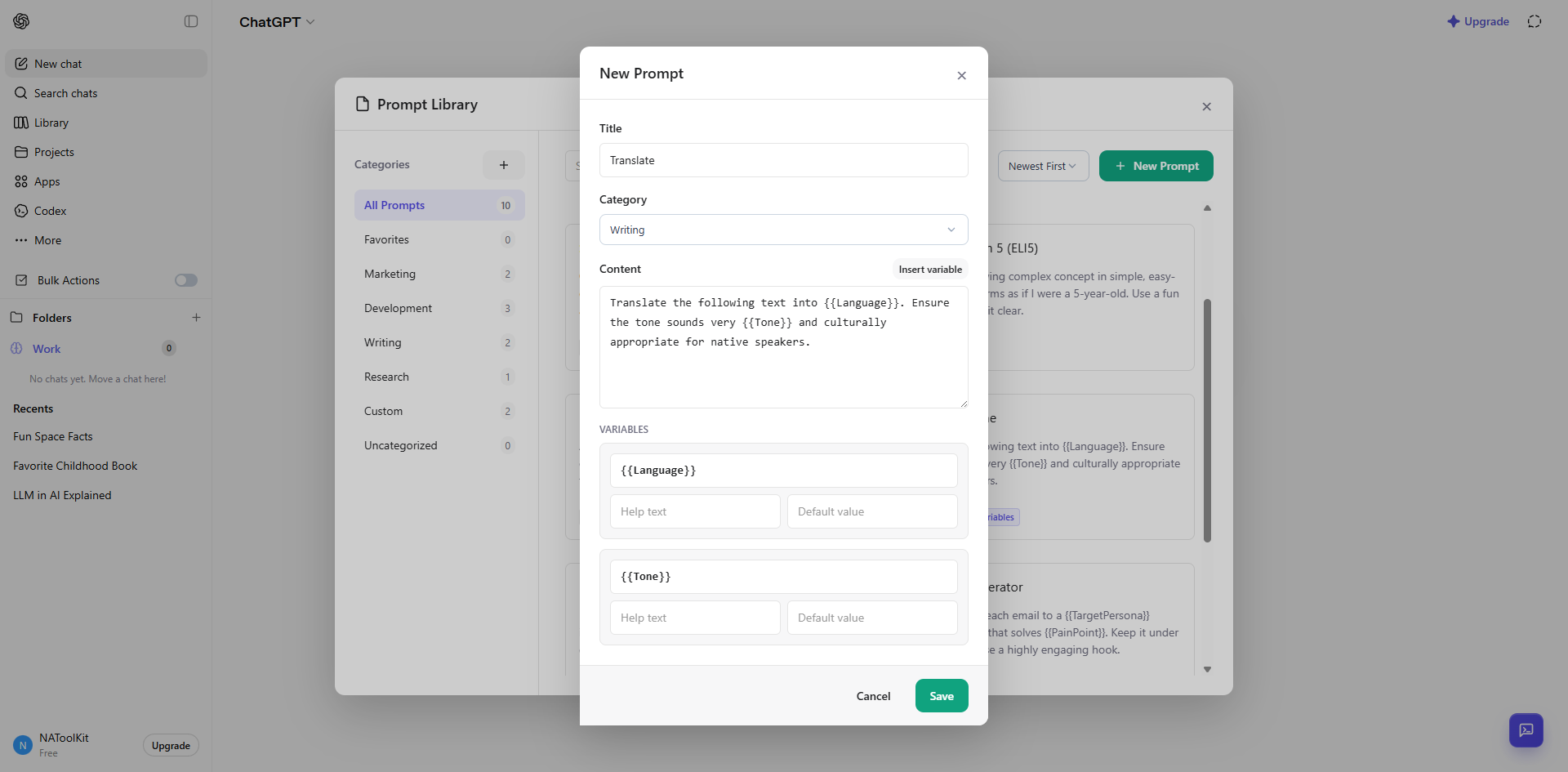
Prompt creation, variables, categories, and favorites.
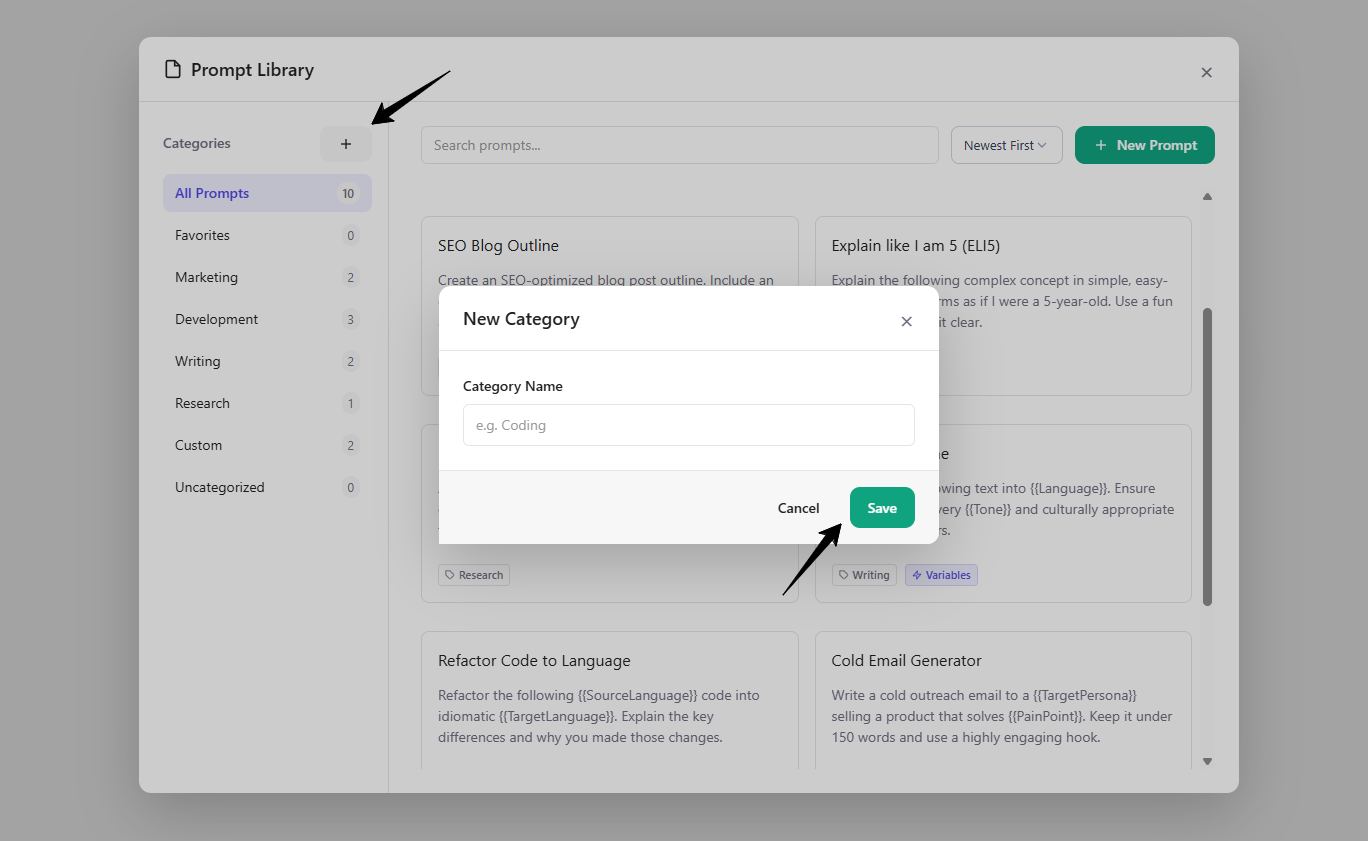
Custom categories.
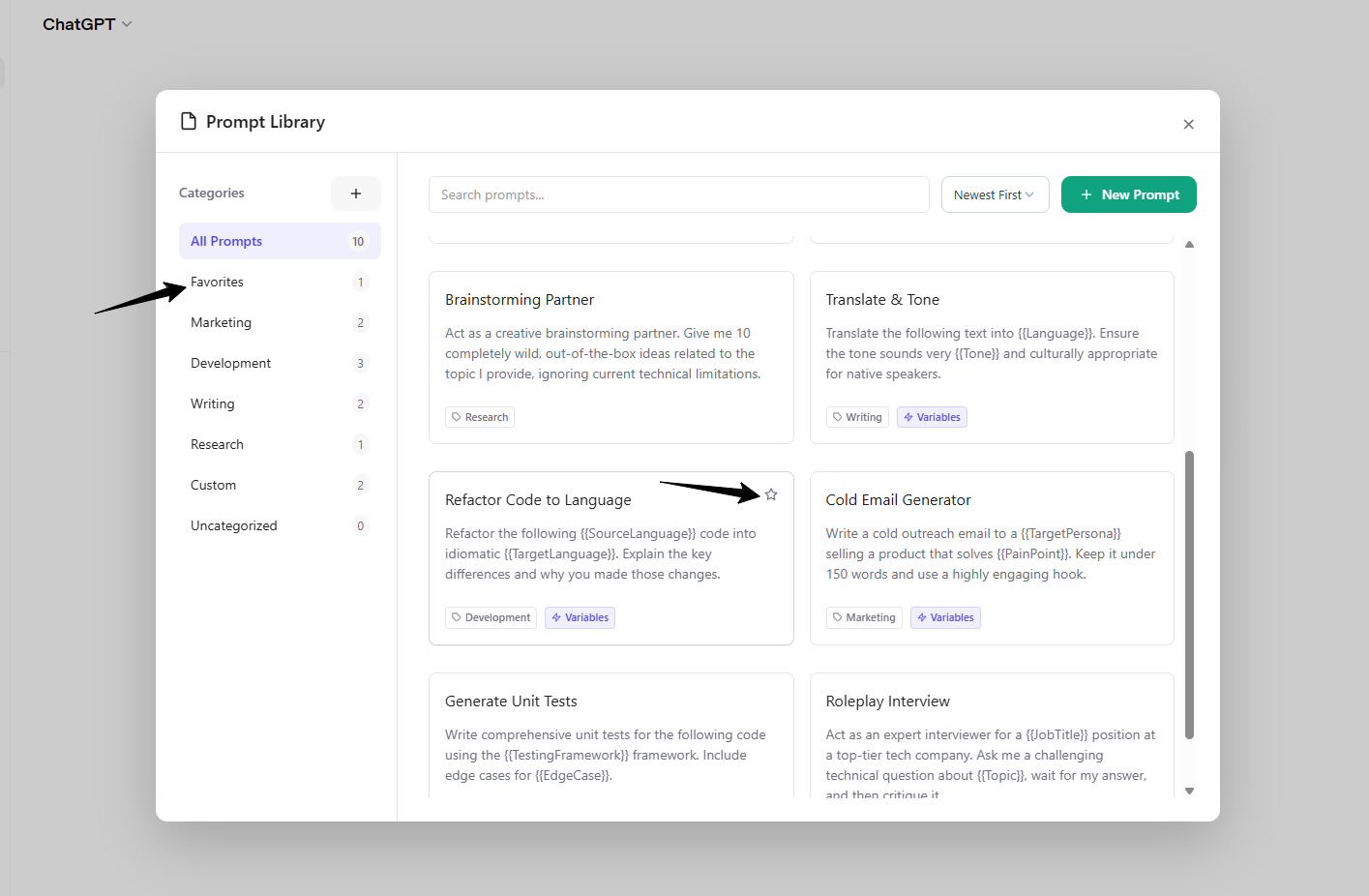
Favorite prompts.
Step 4: Insert a Template
- Click any prompt card in the library.
- If the prompt contains no variables, it will immediately paste into your ChatGPT text box and close the library.
- If it contains variables, a Configure Prompt modal will open.
- Fill out the fields, review the live preview, and click Insert Prompt to paste it.
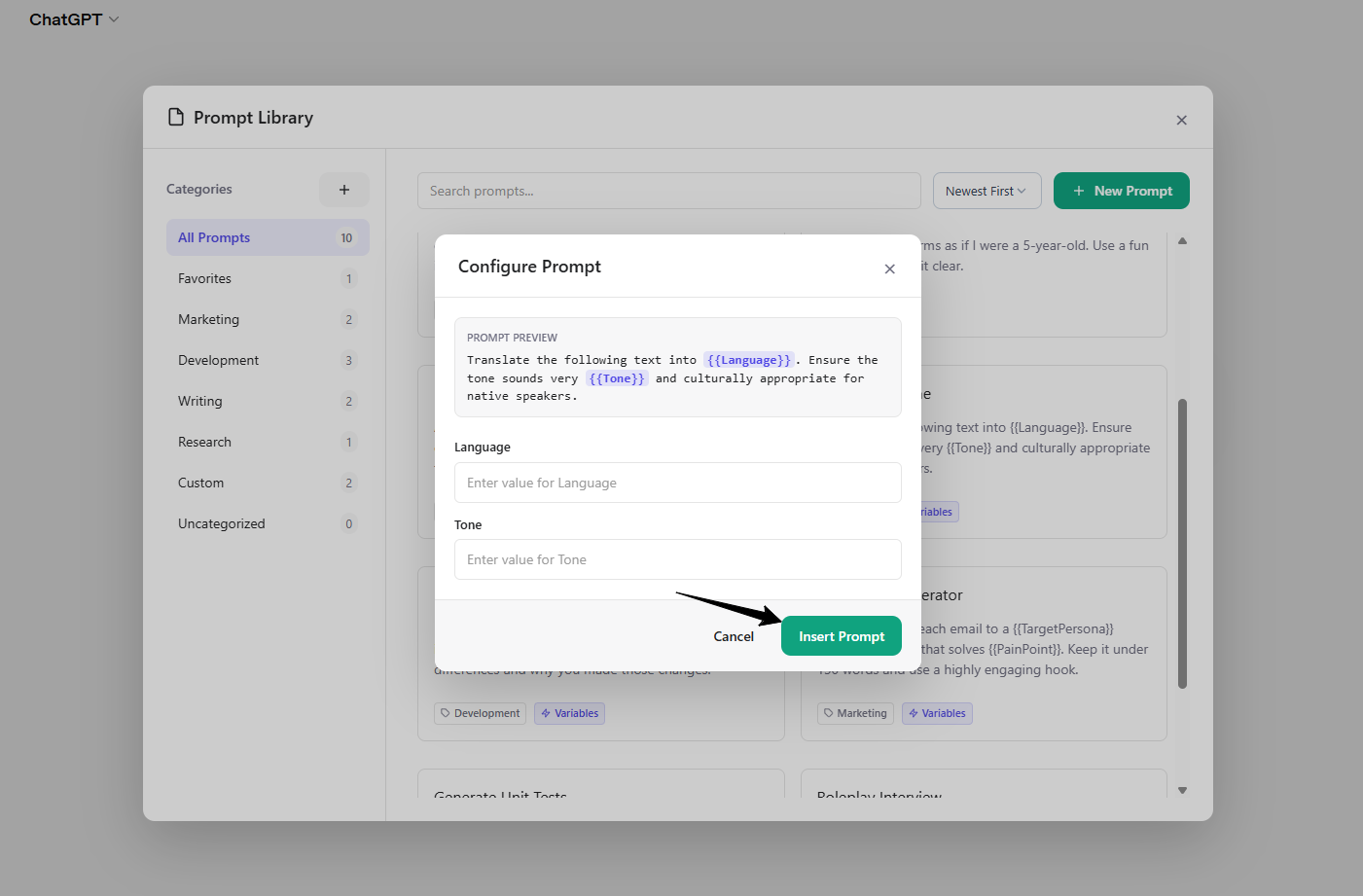
Configure Prompt modal for a template with variables.